The Coding Mant.is

Smashing Through Code

My foray into fear, or why I’m afraid to die — 19-January-2016

My foray into fear, or why I’m afraid to die

I realize this is far off topic for the normal blog posts I try to keep up with writing, but this is something that has been heavily weighing on my mind lately and I just wanted to be open and expressive about it.

Recently, I was given a supplement to help with “adrenal fatigue” – basically my cortisol levels weren’t peaking the way my Dr would have liked. So she gave me something to give my body a little bit of help.

It didn’t go awesomely. You know that “fight or flight” sensation you get when you’re about to, say, hit a deer on the highway? Well my body basically slowly, then quickly, started cycling through “fight or flight” throughout the day. And night. Multiple times. No triggers needed.

The result of this is that I’ve felt my own mortality a bit more than I really like. And even though I stopped the supplement after two weeks of taking a quarter (!) dose, and then waited another two weeks to get it out of my system, the fear remained. Why? Because of that whole “mortality” thing.

This may (or may not) sound odd, but up until now death was perhaps a thing that happened in the world, but it wasn’t something I was immediately concerned with personally too much. I figured I would work up to accepting the notion when “the time came”. Well, I guess the time is now because now it’s on my mind 24/7. And it terrifies me.

I know a lot of people have thoughts about the afterlife, and I am really trying not to think about them. When I think about just how LARGE the universe is, a planet with a star in a galaxy in a supercluster in … well you get the picture … I just have a hard time with divine muchanythings. Which leaves me a afraid of nonexistence. I’m rather attached to me. Seeing out of my eyes, thinking with my brain, feeling with my skin, tasting, hearing… all the senses.

Then I start going down the rabbit hole. What is “me”? Since I work with computers, I think of myself a lot like “software”. In this way the software runs on your laptop when it’s on but doesn’t when it’s off. Like that time I try not to think of when I went under anesthesia to have my tonsils removed. The procedure was simple enough, but the threat of non-existence scared me so much even then that I had to be sedated before I was given the anesthesia I freaked out so badly. And that was about 10 years ago now.

I’m also the girl that doesn’t like to watch the last season of a show because then it’s “over”. The one who does well with beginnings and not endings. And when we come right down to it: the origin of the fear of endings is probably pretty obvious based on the context of this post.

So it’s something that’s clearly always been on my mind, but I shoved away to function. And I did function. Until I couldn’t. The 24/7 thought train became I like being me as I am, I don’t want anything to stop. And then there was the terror: it will stop. It stops for everyone. What is that like? I want to come back please.

Then there was the “do I want to come back”? Given enough time our universe will expand and contract and do I want to be around for billions of years? Really, do I? Maybe? I don’t know?

Rabbit holes. All of them. Then there was the “changing state” rabbit hole. Becoming something different – bodies being reused back into nature. Yeah, not touching that rabbit hole right now either.

It’s been really hard and terrifying. And it’s to the point that just existing is hard, because all I see are the endings and not the nows or the beginnings. And it’s awful.

I’m lucky, I have a safe home that is warm (while it’s ~ 12ºF/-11ºC outside). I have a fiancée that loves me and is doing everything she can to help me get through this. I’ve started trying to be better with people in general because that’s just something that seems super important to me right now. I’ve started meditation and yoga classes to help give my body something extra while I wear it out, freaking out. Crazy healthy food courtesy of fiancée and helping me keep on top of drinking a LOT of water. Going to see a Dr to talk through all this.

Right now I am telling myself that hopefully, “when the time comes” I’ll have better understanding or at least acceptance. Of course, there are no guarantees right now but that’s what my brain needs to hear to let me live my life instead of hiding in a bubble too afraid to die and not experiencing anything in the interim.

As for why I’m sharing this, well… after talking to people, I’ve discovered that a lot of people are afraid to die. I don’t think that we talk about it much, except when someone passes, but it’s a fear I think that we all share to some degree or another. So I’m sharing my experience, my fear, and opening it all up. I can’t really talk too much about it right now, I’m not in that mental space, but for the next person that searches “Fear of Death” maybe this will pop up and help that someone feel less alone.

Here’s to hoping for the future and living in the now.

Lots of love to you all :)

Quick Time Machine Tip — 7-December-2015

Quick Time Machine Tip

Tip first, because the backstory ended up being longer to write out than I thought:

I’ve been using Time Machine for a few months now and recently ran into an issue where my backups were filling up too quickly. At first I just disconnected my external HDD and made a mental note to investigate the issue (haha free time), but ultimately only “made time” when it gave me a message like “hey, just wanted to let you know I’m deleting some of your older backups”.

Like hell you are, Time Machine. Like hell you are. We haven’t been in a relationship long enough for you to start telling me that I need to get rid of my things because there’s too much clutter in the house. I mean drive. I meant drive.

Random Oops Image from the Interwebs

Aaaaanyway. It turns out there is a Quick and Easy way to get Time Machine to exclude things it really, really has no business backing up. Like, say, 50 GB worth of virtual machines. Stuff like that.

It’s actually pretty straightforward to do this and I think I can successfully capture it in two screenshots.

Step 1 - Time Machine Options

Step 2 - Select your folders

And now for some backstory:

As is probably obvious by now I do most of my development on a Mac. I was previously working on a 2012 Macbook Pro from work, but then when it started to have some weird issues it was supposed to be sent off to Apple, repaired, and rehomed while I got to work on a new 2015 Macbook Pro.

As with all things technology this didn’t go as smoothly as anyone would have desired. After going in over the weekend to diagnose the heat issue that wasn’t entirely the fault of the fans, I went to pick up my new 2015 Macbook Pro. While I was there asked if I could bring in the 2012 the next day, instead of dropping it off then, after making sure I could get everything on the new Macbook. Apple Genius bar said it was no problem, so hurray.

Except no hurray, because after I arrived home and turned on the new, shiny, 2015 Macbook Pro it kernel panicked on the first try. Yikes. So I restarted it, was eventually brought through the prompts that all Mac users are familiar with by now to sync all the things. Yay. And things seemed fine, for a time. Until bam. Panic. Shut down.

Ooookaaaay… so then I tried resetting the NVRAM. Rebooted. Seemed fine. Until, again, kernel panic and shut down. This happened a total of four times in the span of … maybe an hour IIRC. After that, I tried just letting the 2015 Mac idle instead of transferring my data onto it, but alas it still panicked just by being on – even when I wasn’t doing anything to it.

So I went back to the Genius Bar with the new 2015 Mac. Explained that it wasn’t the 2012 Mac they thought I’d be dropping off, but that new 2015 Mac had been kernel panicking even without me touching it. So then they tried to boot it and it didn’t boot at all, haha. They ran some hardware tests and everything passed so they tried booting it again and it still didn’t boot. So they handed me a new 2015 Macbook Pro no-(other)-questions asked. In their words “a brand new machine shouldn’t behave this way, we’ll just exchange it”.

Apple Genius bar = lovely people to work with.

Of course when the 2012 Macbook Pro started having heat issues I started to become more attentive with my backups. I didn’t use Time Machine, I just backed up my files to my Synology NAS. I figured that if and when I set up a new machine it would be the perfect time to “declutter” my environment and only install new things and set them up as I need them.

That was before I tried setting up two new environments in a week while also worrying about what would happen if my New New Macbook ended up with similar behavior problems and then I’d have to do it again.

Princess Violet - Sword of Truth

So that’s when I decided something needed to happen and I started using Time Machine. Which brings us full circle to the Quick Tip at the top.

By the way, as for my New New Macbook Pro it is mostly problem free with the exception of some pesky networking issues…

New new new new ...

A non-technical post: What are you paying for with Apple? — 31-August-2015

A non-technical post: What are you paying for with Apple?

Sometimes I like to go through Apple’s store and see the different cost of ownership for different products. Part of the reason I like to do this with the Apple store in particular is their pricing scheme and product layout makes this really easy to do since all the products are made from the same manufacturer.

Mostly non-portable

27″ iMac vs 15″ Macbook Pro

To start, let’s take a gander at these two products:

27 iMac vs 15 MBP

The two products have as comparable specs as I can provide them for the processors and storage, but I did double the RAM on the iMac. Between that and the graphics card the difference in price is only $200. Dropping the memory on the iMac down to the Macbook Pro’s max 16 GB actually drops the iMac price $400, so at that point the iMac is actually $200 cheaper than the Macbook Pro.

The reason I started here when I was playing around is because I was curious how different these two products would work out to be since I happen to like these two in particular. Basically when choosing between them I would need to choose between screen and RAM or portability.

27″ iMac vs 27″ iMac 5k

What I was curious about next is their new 5k iMacs (only available as 27″):

27 iMac vs 27 iMac 5k

Again with comparable specs, and again the prices differ by only $200. So for those interested in iMacs (which I occasionally am), the main price concern is “do I want to pay an extra $200 and have retina or not?”

As an aside, I have played with their 5k iMac in store and it was meh to me – I personally wouldn’t pay the extra for it on a 27″ screen.

27″ iMac 5k vs Mac Pro

What happens when we change the base model to one with some serious potential for power:

27 iMac 5k vs Mac Pro

Yikes! Note that the starting point for the processor on a Mac Pro is much higher than the 27″ iMac 5k. Actually the max processor available for the this iMac is still a quad core, just at 4.0 GHz and $250 higher than the one I used here. That still puts the price difference between the Mac Pro and iMac at $950. Note that unlike the iMac the mouse/trackpad and keyboard are not included in the price of the Mac Pro and of course you’ll have to buy a monitor of some sort.

Of course these two products are ultimately quite dissimilar with regards to their target audience, but you can’t blame a girl for being curious.

Mac Pro vs Mac Pro

While we’re dreaming and looking at Mac Pros, let’s see what the difference in price is between a Mac Pro with the previous configuration and one with maximum configuration:

Mac Pro vs max Mac Pro

$4800. Niiiiiiiice. Dat cache tho. Shake it.

Portables

So getting back to what will probably be of interest to more people: what is the difference between the Macbooks, Macbook Airs, and Macbook Pros? And what about the Mac Minis while I’m at it?

Macbook vs Macbook Air 13″

So Apple came out with a new 12″ Macbook. I imagine it is to revamp their long-defunct Macbook series which used to be black or white before going white only (apparently the black was limited edition and IIRC pricier). Taking a quick look:

Macbook vs Macbook Air

Specs are roughly comparable with a slight dip in the processor and graphics – but the prices are identical! So for the same price you can have a 13″ screen with slightly better processor and grapics, or you can have a smaller screen with color choice.

Seriously, why not just make the Air come in colors?!?!

13″ Macbook Pro vs Mac Mini

After taking a look at the Mac Minis I figured they’d be pretty similar in price to the 13″ Macbook Pros and I was pretty close:

13" Macbook Pro vs Mac Mini

Only a $500 difference off the bat, not bad. Of course unlike the iMac, and similar to the Mac Pro, the mouse/trackpad and keyboard are again not included in the price. And there’s of course the need for a monitor. Depending on the monitor you get, that rapidly eats the small savings on the Mac Mini.

13″ Macbook Pro vs 15″ Macbook Pro

One last quick bit of information I was curious about: what is the price difference between comparably speced Macbook Pros?

13 Macbook Pro vs 15

$100 extra for the 15″ with a slight change in processor and graphics, not bad.

Caveats

Obviously there are different reasons for choosing the different models – maybe people want a lower starting point and don’t want to compare directly “apples to apples” as it were. Nonetheless, I still feel like this gives a good gauge for Apple’s price differences between different models and products.

Setting up WordPress on Digital Ocean with a domain name and fixing the dreaded Error Establishing a Database Connection — 17-July-2015

Setting up WordPress on Digital Ocean with a domain name and fixing the dreaded Error Establishing a Database Connection

I am letting my fiancée run a WordPress site on one of my Digital Ocean droplets. I’ve never been a fan of running WordPress myself, hosting is awesome, but hey learning opportunity for me. Right? Right.

Getting Started: LAMP on Digital Ocean

For the record, although Digital Ocean does have the ability to use an image on the 1 GB RAM/30 GB SSD droplet, I went with the 512 MB RAM/20 GB droplet. This is more than adequate for our needs.

In order to install LAMP, I went through Digital Ocean’s LAMP on Ubuntu 14.04 tutorial. Love the Digital Ocean tutorials – well written with no missing “oh I assumed everyone knew that” steps.

Once I successfully installed LAMP I created a snapshot.

Installing WordPress Itself

This was also pretty painless, due in no small part to the Digital Ocean tutorial for installing WordPress on Ubuntu 14.04.

Made another snapshot.

Using a Domain Name

Very painless. In Digital Ocean click the DNS tab at the top and supplying your domain name, droplet IP address, and select your droplet from the dropdown. Then, log into wherever you manage your domains and add replace whatever default name servers your provider is using with the three Digital Ocean name severs. Digital Ocean tutorial for more information.

Tweaking to avoid the dreaded FTP credentials

…this was a bit of a PITA. I did follow this lovely Digital Ocean tutorial but was still being prompted for the FTP credentials. To stop this, I did two things. I added the FS_METHOD line to the wp-config.php file in addition to the lines specified in the tutorial like so:

define('FS_METHOD', 'ssh2');
define('FTP_PUBKEY','/home/wp-user/.ssh/wp_rsa.pub');
define('FTP_PRIKEY','/home/wp-user/.ssh/wp_rsa');
define('FTP_USER','wp-user');
define('FTP_PASS','');
define('FTP_HOST','127.0.0.1:22');

(Note that the FTP_PASS is an empty string because I’m using SSH keys.)

I also changed the owner on /var/www like so:

sudo chown -R www-data:www-data /var/www

So, ultimately, the permissions on the ~/.ssh and /var/www directories should look like this:

drwx------ 2 wp-user wp-user    4096 Jul 16 21:03 .ssh

...

drwxrwxr-x  3 www-data www-data 4096 Jul 13 13:51 www

And the key permissions should look like this:

-rw-r--r-- 1 wp-user wp-user      755 Jul 16 21:03 authorized_keys
-rw-r----- 1 wp-user www-data 3326 Jul 16 20:57 wp_rsa
-rw-r----- 1 wp-user wp-user      738 Jul 16 21:00 wp_rsa.pub

Appendix: The Dreaded “Error Establishing A Database Connection” Issue

So pretty much immediately after I accomplished all the above (yay?) my fiancée began tweaking her website. For hours. Nonstop. I mean, hey, I’m glad to see the fruits of my labors being put to the test! But then there was the dreaded call from across the house: “HONEY! IT SAYS I CAN’T ESTABLISH A DATABASE CONNECTION?!”

Ah, damn it.

I go to her domain. Sure enough, the dreaded error is there. I go to the wp-admin page to see if it will let me log in. Nope. I’m not hopeful, but I see advice that I should add the following line to the ../wordpress/wp-config.php file, so I do:

define( ‘WP_ALLOW_REPAIR’, true );

I restart the apache server with sudo service apache2 restart and when I go to www.thewebsite.com/wp-admin/maint/repair.php it still shows the same error. Drat.

Wait, can I even log into MySQL?

$ mysql -u wp-db-user -p 
Enter password:
ERROR 2002 (HY000): Can't connect to local MySQL server through socket '/var/run/mysqld/mysqld.sock' (111)

DUN DUN DUN. Let’s check out my processes:

$ sudo ps wwaux | grep -i sql
wp-user      7378  0.0  0.1  11740   952 pts/0    S+   22:09   0:00 grep --color=auto -i sql

dun. dUn. Dun. dun. DUUUUUUUUUNNNNNN.

So I restarted the MySQL service:

$ sudo service mysql restart
stop: Unknown instance:
mysql start/running, process 7405

$ sudo ps wwaux | grep -i sql
mysql     7405  0.3  9.7 624020 49136 ?        Ssl  22:10   0:00 /usr/sbin/mysqld
wp-user      7544  0.0  0.1  11740   948 pts/0    S+   22:11   0:00 grep --color=auto -i sql

Went to the web page and the WordPress site was running happily once more.

Before alerting the fiancée, I scoped out the Digital Ocean Community Forums (these are GREAT btw) and found a reference to someone with a similar issue resolving it with swap space when it runs out of memory. I figured, perhaps adding some swap wouldn’t be terrible since she’ll probably go through periods of heavy editing when she redesigns it, but then leave it alone otherwise. That and she’s only using about 12% of the disk right now so it’s not like I can’t afford to give her some swap space.

Creating the Swap Space

Quick and easy courtesy of yet another Digital Ocean tutorial on how to make a (roughly) 256 MB swap file with Ubuntu 12.04 (commands are the same for 14.04).

Making the swap file itself:

$ sudo swapon -s
Filename                Type        Size    Used    Priority

$ sudo dd if=/dev/zero of=/swapfile bs=1024 count=256k
262144+0 records in
262144+0 records out
268435456 bytes (268 MB) copied, 1.10308 s, 243 MB/s

$ sudo mkswap /swapfile
Setting up swapspace version 1, size = 262140 KiB
no label, UUID=<some UUID>

$ sudo swapon /swapfile

$ sudo swapon -s
Filename                Type        Size    Used    Priority
/swapfile                               file        262140  0   -1

Now to edit the /etc/fstab file. I installed vim with sudo apt-get vim right after spinning up the droplet, but obviously you can replace vim with your editor of choice. Just open up the file like so:

$ sudo vim /etc/fstab

And add the second uncommented line:

# /etc/fstab: static file system information.
#
# Use 'blkid' to print the universally unique identifier for a
# device; this may be used with UUID= as a more robust way to name devices
# that works even if disks are added and removed. See fstab(5).
#
# <file system> <mount point>   <type>  <options>       <dump>  <pass>
# / was on /dev/vda1 during installation
UUID=<some UUID, same was was output above> /               ext4    errors=remount-ro 0       1
/swapfile       none    swap    sw      0       0

Now to set the swappiness to 10 to make the swap act as an emergency memory buffer:

$ echo 10 | sudo tee /proc/sys/vm/swappiness
10

$ echo vm.swappiness = 10 | sudo tee -a /etc/sysctl.conf
vm.swappiness = 10

Give everything the correct permissions:

$ sudo chown root:root /swapfile

$ sudo chmod 0600 /swapfile

At this point I restarted the Apache server again just out of habit…

Python Version Management with pyenv — 6-July-2015

Python Version Management with pyenv

As an aside, today I was hunting around for Python version management à la RVM and I found pyenv.

For version management it’s pretty straightforward. To install on the Mac, I just used Homebrew:

brew install pyenv

Since the version of Python on my Mac (running OS 10.10.4) is 2.7.6, I used pyenv to install 2.7.10 and 3.4.3:

pyenv install 2.7.10
pyenv install 3.4.3

A little backwards, but at this point I realized I needed to update my .bash_profile per the installation instructions:

echo 'export PYENV_ROOT="$HOME/.pyenv"' >> ~/.bash_profile
echo 'export PATH="$PYENV_ROOT/bin:$PATH"' >> ~/.bash_profile
echo 'eval "$(pyenv init -)"' >> ~/.bash_profile

Ubuntu users: according to the instructions you should use .bashrc not .bash_profile. Verify your installation instructions on the GitHub README.

If you’re new(ish) to BASH, before sourcing .bash_profile take a look at the new lines that you just added. Then, source:

source ~/.bash_profile

If you take a look where python is run, you'll see that it has changed from:

$ which python
/usr/bin/python

To:

$ which python
/Users/quinn/.pyenv/shims/python

Now a cool thing that you can do with pyenv is use .python_version file to specify what version of Python you want used with your script.

To play with this, create a .python_version file with the version number:

2.7.10

Now create a quick little Python script, myscript.py:

username = input('What is your Reddit username? ')
name = input('What is your name IRL? ')
age = input('How old are you? ')

print("Your name is ", name, ", you are ", age, " years old, and your Reddit username is ", username, ".")

When you run your script (python myscript.py) it should fail because the script is not compatible with Python 2.x. Update the .python_version file to 3.4.3 instead of 2.7.10 and re-run. This time you should be successful.

Protip: If you need to run against a version of Python that you haven’t yet installed, you can run pyenv install without any arguments from the directory with your .python_version file. This will install whatever versions of Python are specified in the file.

CLI Tricks: Navigating Around the Prompt — 28-May-2015

CLI Tricks: Navigating Around the Prompt

It’s not uncommon to need to make changes to a command after entering it in the command prompt. For example, perhaps you need to reuse a command from the history but with a small change or perhaps you need to fix a typo.

Luckily, Unix command prompts support both Emacs (default) and Vi(m) key bindings for quickly arriving at the section you need to make small edits.

Let’s take an example where you want to download a light AWS stemcell (~6 KB):

curl -L -J -O https://bosh.io/d/stemcell/bosh-aws-xen-ubuntu-trusty-go_agent

There is a typo in the above line: the path should include d/stemcells not d/stemcell. Of course this text is awkwardly placed, so what’s the best way to fix it?

Method E: Emacs Bindings

The key bindings of interest here are ^a, ^e, esc+f, and esc+b where ^ represents the ctrl key. Try the following:

  1. Copy the curl statement as-is, typo and all, into your command prompt
  2. Enter ^a to go to the beginning of the line
  3. Enter esc+f until you reach the end of the world stemcell (should be 9 times).
  4. Type in the s so stemcell becomes stemcells

At this point you can either enter ^e to go to the end of the line or Enter/Return to execute the command. Although we didn’t use it in this example, just like esc+f goes forward a word at a time, esc+b goes backward.

Caveat: make sure you don’t just hold down the esc key and keep hitting b or f. If you do, you’ll just typing b’s and f’s. You must hit esc+b or esc+b each time you want to move backward/forward a word.

Method V: Vi(m) Bindings

Since Emacs is default, in order to switch into Vi mode first run:

set -o vi

As with the previous exercise, copy the curl command into terminal with the typo. The key bindings of interest here are: ^, $, b, e, and w.

  1. Copy the curl statement as-is, typo and all, into your command prompt
  2. Hit esc to go into command mode
  3. Enter ^ to go to the beginning of the line
  4. Enter 16e, which will place the cursor at the end of the world stemcell.
  5. Hit a to enter insert mode next to the last l in stemcell
  6. Type in the s so stemcell becomes stemcells

At this point you can either use esc (to go back into command mode) and enter $ to go to the end of the line or Enter/Return to execute the command. Note that the command can be run in either command or insert mode.

If you wish to return to Emacs mode at any time, enter:

set -o emacs

On S&W blog

PGConf 2015 — 17-April-2015

PGConf 2015

I attended PGConf NYC 2015 on March 26-27. Going to conferences is awesome, in my opinion, because there is an amazing collection of minds available. Minds interested in the same topic you are, which in the nerdosphere(TM) is sometimes hard to come by.

Before getting started discussing my favorite talks, I would like to send a quick thank you to the conference sponsors, organizers, and venue. Organizing any conference, especially a successful one, is a lot of hard work. Double props to both the organizers and the venue (New York Mariott Downtown) for being able to cater to people with special diets – in addition to the executive chef Ed Pasch speaking to me personally to check on my dietary restrictions/allergies and making a meal safe for me to eat, I also saw a kosher meal and a vegan meal for two other guests. I’m so used to having to travel with my own food that this was a very pleasant surprise.

My Favorite Talks

Now for the good stuff! Amongst all the amazing talks I attended on both days, I did have a a few favorites:

  • Favorite “inspiration” talk: Building a ‘Database of Things’ with Foreign Data Wrappers
  • Favorite “new feature” talk: JSON and PostgreSQL, the State of the Art
    • Includes a comparison between PG 9.4 and MongoDB 3.x
  • Favorite “tricks” talk: A TARDIS for your ORM – application level time travel in PostgreSQL
  • Favorite “upcoming feature” talk: Row Level Security

Since all of these talks were very informative, and there are several, I’m only going to scratch the surface of what I enjoyed from each. I will be linking to the lecture slides as available and I encourage everyone to take a look.

Building a ‘Database of Things’ with Foreign Data Wrappers

First stop: this talk I mentally dubbed the “fun” talk, because nothing beats having someone control a lights display with PG commands at a PG conference. In order to make this work, Database of Things speaker Rick Otten used Philips Hue light bulbs and, of course, PG’s foreign data wrappers (FDWs). As a point of interest, he used multicorn, which is a PG extension for developing FDWs in Python.

Briefly: the purpose of the talk was to explore the usefulness of FDWs in PG. For the uninitiated, FDWs are used to access data from a “foreign” database. For example, you may need data from an Oracle database, or even a flat file. To access the data you would use the appropriate FDW. FDW read-only support was added in PG 9.1 and write support was added in 9.3 in compliance with the SQL/MED standard.

Why I liked this talk: App ideas! I’m a big fan of “the internet of things” and making our devices “smarter”. For example: you could write a “smart house” application that does things like open your garage when your car approaches (no garage door opener button required), turns on the light in the garage, and then turns on the light of the room you would enter in your house. You could also program some other basics, like light timers and such. Pranks would be awesome too – turning lights on and off, changing their color, making “annoying” sounds. Convince your [insert close friend/relative here] that his/her house is haunted for a day! Or, more benignly, make really awesome outdoor holiday displays (I’m looking at you Halloween and Christmas).

Lecture slides are in the extra directory in the project repo on GitHub. The PG wiki also has a well written article about FDWs here.

Speaker on Twitter

JSON and PostgreSQL, the State of the Art

I really like this talk because it touches on something I am working on as a learning exercise – JSONB.

JSONB is the “JSON Binary” datatype was introduced in version 9.4 (the latest release as of this post). In a side project I am working on, we are actually working on using the database for more. In particular, we are loading JSON data from an API directly into the database and then manipulating that data in PG for use in various tables. The goal of this is to really grok how to maximize PG’s potential and performance with stored procedures.

Something this talk showed that I was not previously aware of is that JSONB containment (@> / <@) is not recursive. Here are a couple example statements from the slides:

postgres=> SELECT '{"a": 1, "b": 2}'::jsonb @> '{"a": 1}'::jsonb;
postgres=> SELECT '[1, 2, 3]'::jsonb @> '[1, 3]'::jsonb;
postgres=> SELECT '{"a": {"b": 7, "c": 8}}'::jsonb @> '{"a": {"c": 8}}'::jsonb;
postgres=> SELECT '{"a": {"b": 7}}'::jsonb @> '{"b": 7}'::jsonb;
postgres=> SELECT '{"a": 1, "b": 2}'::jsonb @> '"a"'::jsonb;

Of these statements, the first three return true and the last two return false. I found this interesting because I initially assumed all five statements would return true and I could definitely see myself making an error implementing this.

Lecture slides are available here.

Speaker on Twitter

Secondary concept: How does MongoDB compare to postgreSQL?

The JSONB talk included something else that I found interesting: a performance comparison between PG and Mongo.

Historically, I’ve heard a lot of negativity about Mongo. In fact, the few times I’ve worked with Mongo 2.x I’ve found it to be quite painful, for example I’ve run into issues with Mongo silently failing on more than one occasion. Hard to troubleshoot. On top of that, typically I’ve seen that PG outperforms Mongo 2.x by quite a large margin by reviewing posts like these.

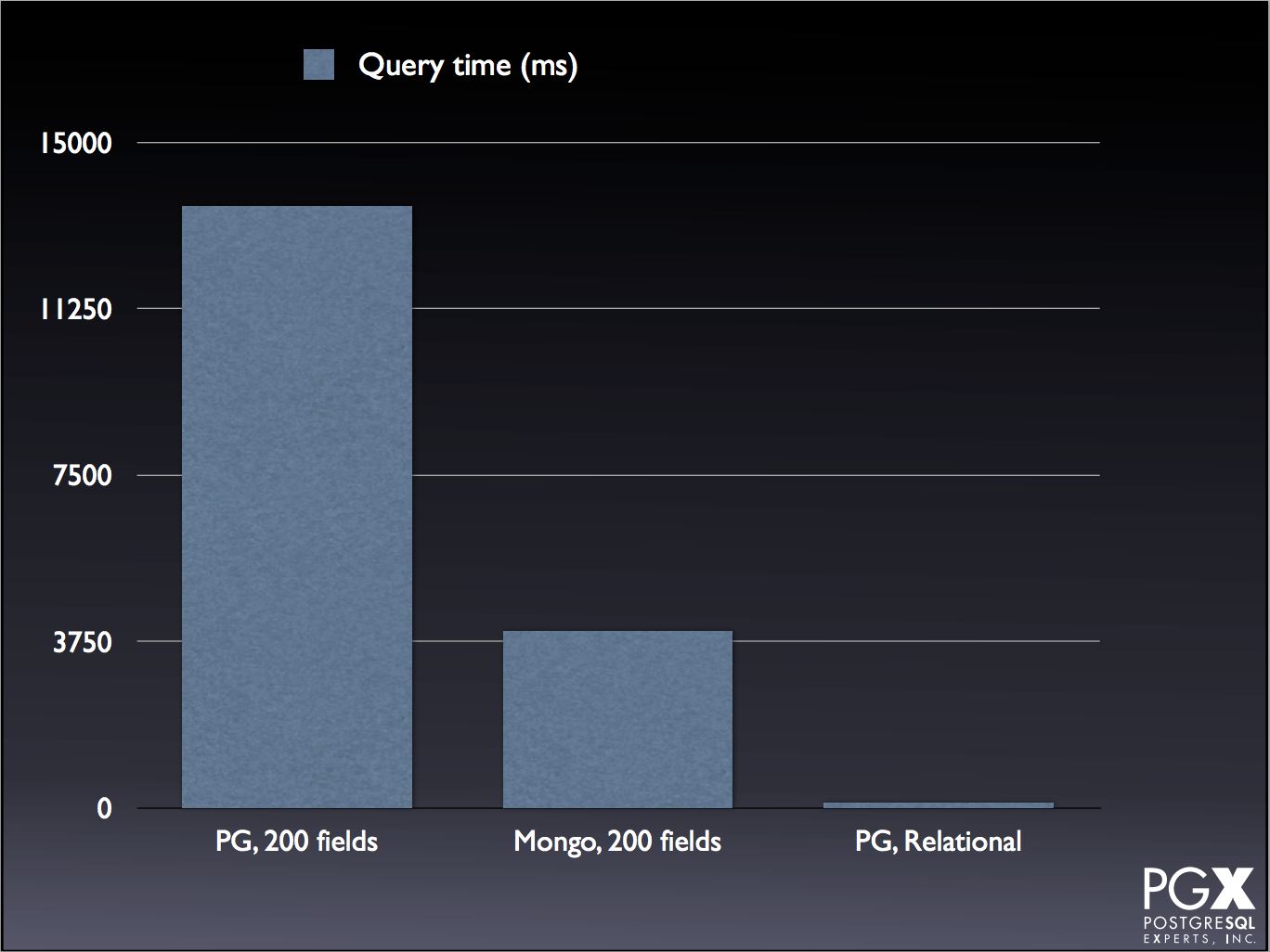
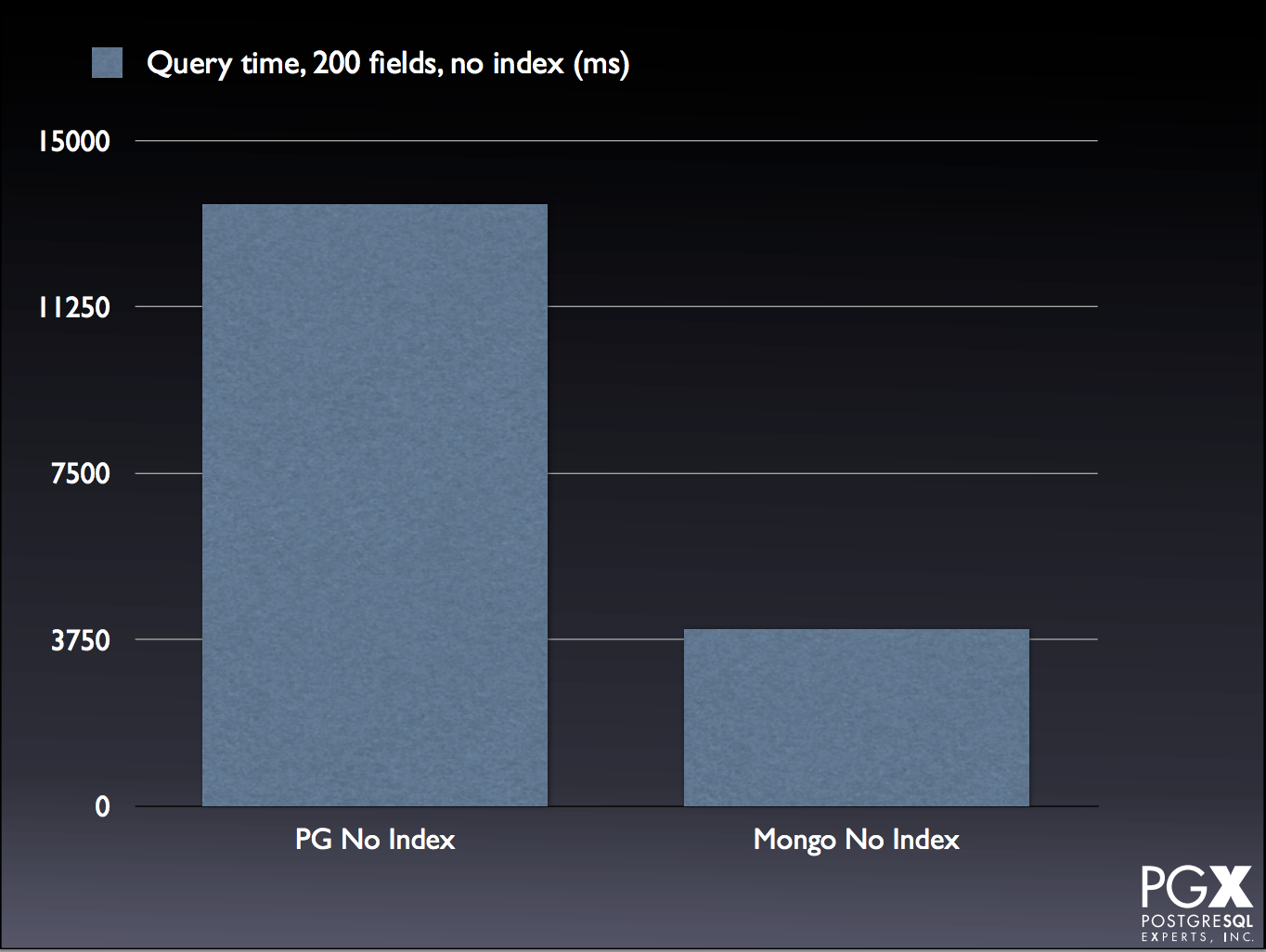
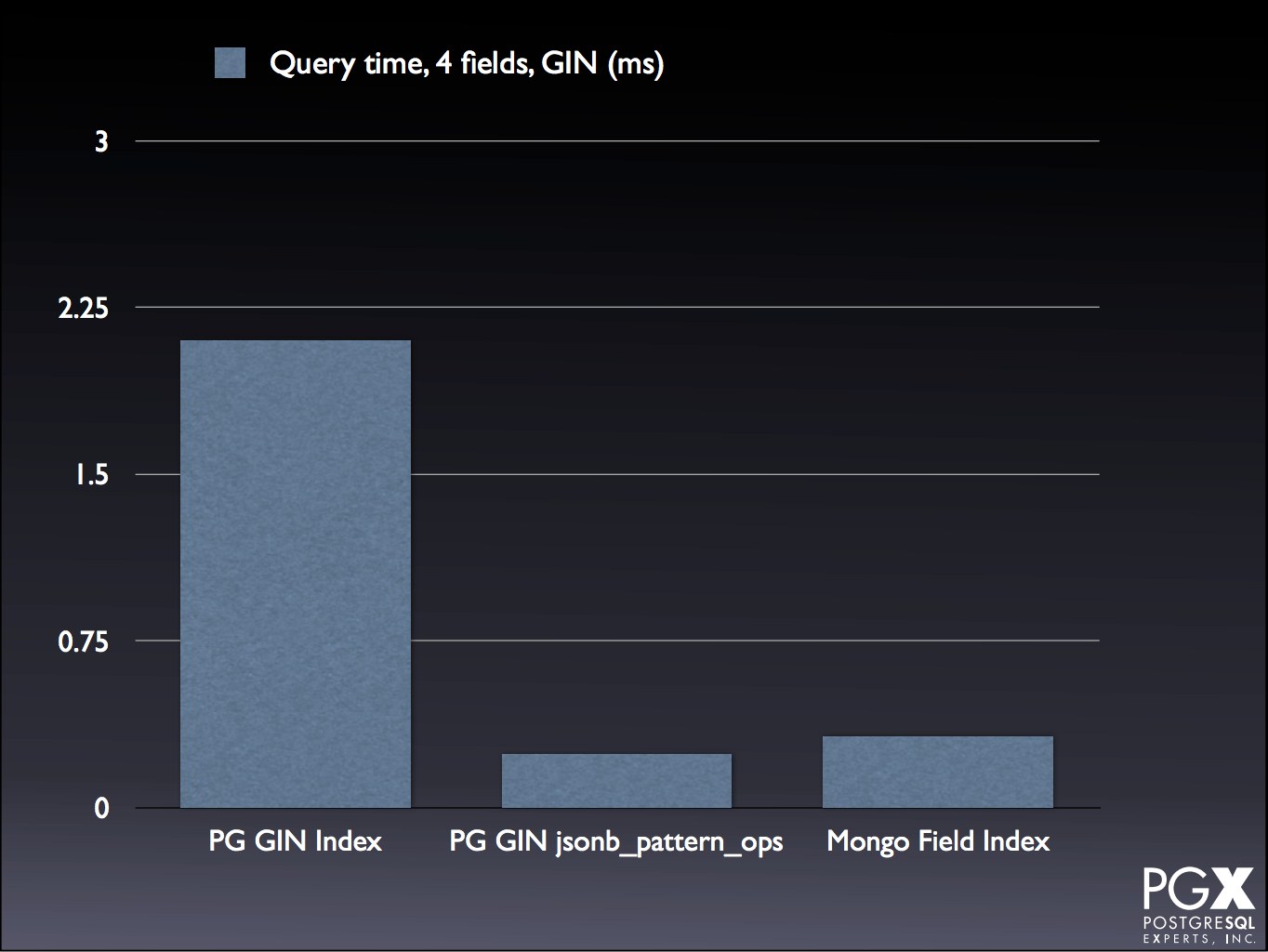
To compare how PG and Mongo handled JSON and JSONB transactions, this speaker did several tests with both 4 and 200 JSON fields using MongoDB 3.x. Although there are some tests where PG is still reigns supreme:

PG Relational

There are several cases where Mongo is comparable, or even exceeds, PG performance:

PG Mongo JSON

PG Mongo No Index

PG Mongo GIN

For the tests and explanations, take a look at the slide deck, starting on slide 75.

A TARDIS for your ORM – application level time travel in PostgreSQL

As a Doctor Who fan, I just want to take a moment to say that if the talk didn’t live up to my excitement from the title alone, I would have been disappointed.

Luckily, it did!

The challenge this solution was designed to solve was reproducing report runs in a system that held a lot of statistical data that included personal information. More granularly, the solution was originally engineered to be able to reproduce incorrect reports.

By example: you have a row of data that was entered as {Jane, Doe, Dec-25-1986, F, Security Guard} on Jun 1 2015, but was then corrected to {Jayne, Doe, Dec-25-1986, M, Security Guard} on Jun 20 2015 (too soon?). All reports run between Jun 1 and Jun 19 2015 would include the first result, and all reports thereafter would include the corrected result. If some day in 2016 you needed to replicate the report as it was run on Jun 15 2015, you would need to have the uncorrected result returned.

So, what did they do?

They built a solution that included PG (of course!) as well as JBoss/Hibernate. In order to keep their old data they made history tables and included a column with a range type to keep track of when specific data points were valid. In order to update the tables, they wrote a series of trigger functions that handle whether data/tables are being updated or deleted and update the corresponding date ranges. Then they created a “time travel” schema and a used a schema search setting to determine what views (autogenerated) are returned. To determine which reports contained a specific person, they used full reporting query logging with “time travel”.

Some caveats/requirements:

Lecture slides are here.

Speaker on Twitter

Row Level Security

I’m really excited about this feature, confirmed for release with PG 9.5. The scoop on this one is that this is a security feature that can restrict what rows are returned in a dataset. This is done by creating a security policy (CREATE POLICY) and applying it to your tables. Thinking forward, the team has also made it possible to add a security policy to an existing table (using ALTER TABLE, ENABLE ROW LEVEL SECURITY).

I think the main reason this excites me is because of a past job I had working as a DB admin at a company that handled data for clinical data trials (read: patient data, HIPAA, paperwork, security policies up the wazoo). As a point of interest that company uses Ingres, which I’ve found amuses PG fans more so than most ;)

Now that I’m thinking about them, I could definitely see this feature being useful in that setting (if they were using postgres). For example, let’s say you have 3 groups tracking breast cancer data. Maybe they are gathering the same data, so you could have one table but you want to make sure that no one can see the others’ data. Enter RLS. You could restrict which rows are available to each group, so that they only see their own data when they run queries :D

Although the link to the PGConf Row Level Security presentation isn’t available yet, he did give a similar presentation a few months ago. Those slides are here. The slides are filled with examples for how to CREATE, UPDATE, DROP/DELETE, ENABLE, DISABLE, etc. – so I highly recommend reviewing them. You may also want to reference the PG developer docs on their wiki here.

Speaker on Twitter

Written with StackEdit.
Link to work post

Hello (again) world! — 7-April-2015
Git-fu: How to avoid pulling a muscle while making pull requests — 9-January-2015

Git-fu: How to avoid pulling a muscle while making pull requests

Even if you’re still new to coding, you’ve probably heard people talk about making pull requests. Maybe it was just a passing conversion:

You: That link is broken.
Someone: Just make a pull request.

Depending on your level of Git-Fu, you might be left wondering: “what the heck is a pull request?”

What is a pull request

Simply put, a pull request is what you do when you want to edit code in a repository that you do not have access to. For example, there are many open source projects where you can view the code, but since you are not a collaborator you cannot directly commit any code changes. So if you notice a problem, e.g. a broken path or an obscure error message, you cannot change it.

To make the changes, you submit what is called a pull request. The TL;DR version is that you are effectively checking out the code, editing it, and then submitting it for review rather than committing it directly to the project’s repository. The project collaborators can then review the suggested edits and choose whether or not to merge the code.

Making your edits

Since the whole point of a pull request is to touch code that isn’t yours, you have to fork the repository. Forking the repository puts a copy of the code in your repository

  1. Fork the repository by clicking the fork button:
  2. Clone your forked repository: git clone <forked project path>
  3. Checkout a new branch: git checkout -b newBranch
  4. Do an initial commit before making your changes: git push origin newBranch
  5. Make your edits
  6. Run git diff to make sure there were additional edits you did not intend
  7. Add, commit, and push your edits to your branch. If you do not want to add all the files, you can add individual files with git add <file name>. Remember, to push the updates to your branch use git push origin newBranch.

As a side note for git diff, occasionally you may find that more code edits occurred than you intended to make. As an easy example, you may have a linting/formatting plugin installed for your text editor. If the plugin “cleans up” the code in a way you did not expect, the only way you would easily see these edits is by running git diff. Depending on the circumstances of your pull request, or how familiar you are with the project in general, you may or may not want to keep these edits.

Creating the pull request

Go back to the main project page – not your forked repository/branch. When you go to create your pull request on GitHub, the software should actually detect that you forked the project and prompt you to “Compare & pull request”:

Here you can see that it pulled the correct branch from my forked repository. If you don’t see this dialog box, do the following:

  1. Click “Pull Requests” on the left nav bar:
  2. Click big, green “New pull request” button:
  3. Select the correct branch(es) from the drop down menus:

Regardless of which method you choose, once you have reached this step you can see your last commit message and an option to add additional details:

Then you can just click “Create pull request” to submit your changes.

Git-fu: Branch (-es, -ing) — 7-January-2015

Git-fu: Branch (-es, -ing)

When you’re new to the programming world, you may hear a word like branches and think of something like this:

Contextually, though, you know something is awry. Why would that have anything to do with your work?

Hint: It doesn’t.

Except for that whole “save the planet” thing.

…Seriously, though, we should take care of our environment. We live here after all.

Quick “How To” for branching with Git

As a new programmer, a lot of what I’ve done so far has been in my own GitHub repo with no one touching it but me. (Question: Who wants to touch the newbie’s code? Answer: No one. Duh.) As this is the case, it is really easy to get into the bad habit of pushing to the master branch. All the time. Well, most of the time. Perhaps a little unreliably, but that’s no big deal, right? I mean, you’ll just push it later. Maybe. When you remember and get around to it.

So yes. Really bad habits.

In an effort to break this habit, I decided to start making branches.

What is a branch?

If you want to read a bit about it and look at pretty diagrams, I recommend hopping over to git-scm’s “Git Branching – What a Branch Is” page. For now, I’ll just provide a TL;DR version:

  • By default in git you have a master branch, which is where you I have been pushing your my code this entire time.
  • When you create a branch, you can think of it as a copy of the code. Initially, both the master and newBranch are identical.
  • When you push edits to newBranch, master is unaffected.
  • When you want to include the newBranch edits in master, you merge the two branches.

Sounds like extra work…

…and it is, especially when your development team has only one member and that member is you, newbie :)

When used properly the main benefits, as I understand them, are:

  • Branches are only merged to master when their code is working. Therefore master is always working. Don’t we all wish that were a thing?
  • To get ready for the leap to a development team of 2+ developers, you’re going to want to branch so that your edits don’t mess up developer N’s edits (for N < numberOf(otherDevelopers)). (Likewise you don't want anyone else working on what you're trying to work on, right?)

So what do I do?

If you want to take this next step, then it's as easy as 1, 2, 3 (…4, 5, 6…):

  1. Create the new branch. If you're a GitHub user, you can do this in the web UI. Or you can do this in the command line with git checkout -b newBranch
  2. Edit some code.
  3. Push some code.
  4. Rinse, lather, repeat until the code is where you want it.
  5. Switch back to the master branch: git checkout master
  6. Optional (only as long as you're going solo): git pull origin master
  7. Merge the new branch into master locally: git merge newBranch
  8. Push the changes: git push origin master
  9. Delete the branch: git branch -d newBranch
  10. Push the changes (deleted branch) via git: git push origin --delete newBranch

That's it – you have now taken the next step into glory. Pretty awesome, right?

Yeah it is! I’m Super Programmer!

Easy, easy. Just be careful not to make it into the next episode of “Branching Gone Wrong”, ok? Remember:

  • Don’t have long running branches. From one of my mentors:

“The longer you have the branch – usually – the further it diverges from master. So, the greater chance of merge conflicts, and of other changes making their way to master that are incompatible with your long-running one, but that’s not noticed until The Great Merging, which by now is An Event because of the sheer amount of things that will change when it happens.”

  • Make sure to clean up after yourself and delete branches after they have been merged!

Reference: Git Branching Commands

  • git status : Outputs your current branch as well as if you have any uncommitted changes.
  • git checkout -b newBranch : Creates a new branch named newBranch and switches your current working branch to newBranch
  • git checkout branchName : Switches your current working branch to the branch named branchName
  • git branch : Lists all branches, current branch indicated with an *
    • git branch -v : Lists all branches with the last commit ID and message, current branch indicated with an * (-vv includes upstream branch)
    • git branch --merged : Lists all branches merged with your current branch, current branch indicated with an *
    • git branch --no-merged : Lists all branches not merged with your current branch, current branch indicated with an *
    • git branch -d branchName : Deletes the branch branchName locally if it has been successfully merged. If not, returns an error.
    • git branch -m currentName newName : Moves/Renames branch currentName to newName. If unspecified, currentName defaults to your current branch.
  • git push origin --delete branchName: Deletes branch branchName from GitHub (as opposed to git branch -d, which only deletes the branch locally).
    • git push origin :branchName : Same as above – the : prefix means “delete”. I personally don’t use this method because I don’t want to get myself in a situation where I have trained my fingers to quickly, accidentally, delete things I don’t actually intend to delete.

Update (1/8): Interactive site to learn Git Branching

Design a site like this with WordPress.com
Get started