The Coding Mant.is

Smashing Through Code

Happy New Year! — 1-January-2015

Happy New Year!

Welcome to 2015!

First: What are NYE Parties?

Although my fiancée and I stayed in last night (she was diagnosed with pneumonia that morning), social media circuits were abuzz with posts about NYE parties. Even then: mostly they consisted of people in their early-mid 20s getting together at a house or bar or ball drop location for a night of revelry:


Source: www.billingtoons.com

So what did we do? Well, my fiancée fell asleep dosed up on a stock pot full of home made chicken soup, juiced veggies, and some nice smelling essential oils in the diffuser. I stayed up late and watched some Farscape, specifically the 3 parter Look at the Princess, on Netflix. I also ate a Hail Merry Mint Chocolate tart, which I picked up at our local grocer when I grabbed aforementioned fiancée some essentials and flowers, and browsed the internet because that’s what you do in 20145.

At some point during the night I apparently lost the ability to parse English, because I started reading posts about NYE (New Year’s Eve, for the uninitiated) as Nye – as in Bill Nye, The Science Guy. One of the Kings of my childhood world.

Who is Bill Nye?

It’s ok. I know you’re not serious.

…Right?

The Science Guy. The one who taught you (not just me, right?) about the wonders of the universe (gravity, the solar system, space in general..), laws of physics (gravity, tension, phases of matter…), our bodies (skin, digestion…) and so on. And that was just season 1!

Putting the Nye In NYE

You can imagine that this sent my sleep deprived, sugar addled, mind into overdrive. There are NYE PARTIES? OMG. WHY AM I STUCK AT HOME. IS EVERYONE MAKING ROBOTS?


Base image source: www.cpsc.gov

Of course after waking back up in the morning I realized I was sadly, sadly mistaken. There were no Nye Parties, only NYE parties.

…but why AREN’T there Nye Parties?!?! Those would be the coolest parties ever. You could theme parties after episodes and have said episodes streaming in the background. You could even wear bow ties.


See? Even the Doctor approves!
Source: cdn3.whatculture.com

Planning Nye 2015 on NYD 2015

At the end of this year, I will have an AWESOME Nye Party and it will be ALL ABOUT cool science in 2015. Current awesome contenders for events at Nye 2015:

  • Favorite 15 Nye Episodes (I guess this means I’ll have to re-watch them all to choose… oh darn ;) )
  • Good food (hopefully inspired by food seen in S2E6 The Food Web, S4E2 Nutrition, and/or S5E5 Farming, because that would be awesome)
  • Favorite 15 science discoveries in 2015
  • Favorite 15 new science facts I learned in 2015
  • Duplicating 15 awesome experiments (safe to try at home) from Bill Nye the Science Guy

Let’s make it awesome.

…and one more thing


In Saturn’s Rings Facebook page

Introduction to Cloud Foundry’s Health Monitor — 17-December-2014

Introduction to Cloud Foundry’s Health Monitor

What is the Health Monitor?

The purpose of the Health Monitor (HM) is to monitor all existing apps and ensure that the appropriate number of instances are running. If there is a discrepancy, then the HM will either prompt the Cloud Controller to start new instances (if there are too few) or stop existing instances (if there are too many).

Some Background

The current release of the Health Monitor is called the Health Monitor 9000 (usually seen as HM9000 or HM9K). The HM9K is a complete rewrite of the Health Monitor. According to the release post, the maintainers’ main goals for the rewrite were to:

  • Solve the then-issue that the HM was a single point of failure
  • Make use of newer technologies (Go, etcd instead of Ruby)
  • Get into the practice of replacing existing components with rewrites

The switch to Go/etcd provides the key difference between the original HM and the HM9K: the ability to store information about the state of the environment in a database instead of in component memory. This not only allows multiple instances of the HM to work concurrently, but also keeps the information available in the event of a single component failure.

How does the HM work?


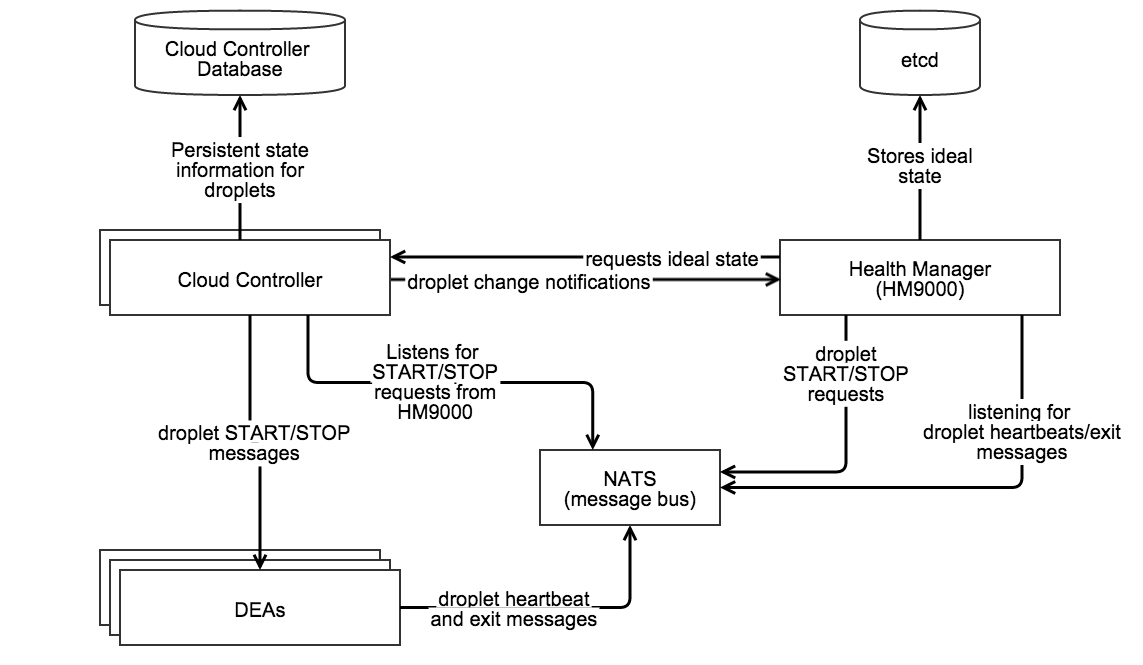
Source: home grown diagram made with Gliffy.

  • Requests the ideal state of the droplets from the Cloud Controller
  • Stores the ideal state in etcd
  • Listens to droplet heartbeats over NATS to obtain the actual state of the droplets
  • Sends droplet START/STOP requests over NATS
  • Moves applications to DEAs during a rolling deploy

Since the HM9K has a great deal of control, it’s been limited to only take actions if the information it is using is “fresh”. Specifically:

  • The actual state is “fresh” if the HM9K has an active NATS connection, is regularly receiving DEA heartbeats, and is able to successfully store the actual state into etcd.
  • The desired state is “fresh” if the HM9K successfully downloads the desired state from Cloud Controller (without timing out) and successfully stores the information into etcd.

If either the actual or desired states are not fresh, the HM9K will stop taking any actions.

What if something goes wrong?

Tips for troubleshooting the HM9K from Onsi @ Pivotal (who is now famous for his talk about Diego):

  • Make sure hm9000_noop is set correctly. When set to false the Cloud Controller will use the HM9K, but if set to true it will use health_manager_next. (which was the predecessor to the HM9K).
  • Verify that etcd is not in a bad state. Typically etcd will only enter a bad state during deployment rather than later. If etcd is in a bad state, you will notice that the HM9K will no longer be able to store current information about the state of the environment. When this happens you should restart etcd by doing the following:
    • bosh ssh into the etcd node
    • Run monit stop all
    • Delete the etcd data directory under /var/vcap/store
    • Repeat for all etcd nodes
    • Once complete for all nodes, restart them by running monit start all.
  • Verify that Cloud Controller is able to send the desired state in time*. (Recall that if the data is not sent/received in time, then the state loses freshness and the HM9K will no longer take any action.) Check the logs of the desired_state_fetcher to view the status . Typically this is only a problem when the Cloud Controller is under heavy load.
    • * What “in time” is and whether you can change it depends on your version of Cloud Foundry. As of Jul 24 2014 users can control the timeout value by setting the hm9000.fetcher_network_timeout_in_seconds parameter in the manifest. The default value is currently 30 seconds. Prior to this, the timeout was set to 10 seconds and was not user configurable.
  • Check the load on etcd. According to the README, if the DesiredStateSyncTimeInMilliseconds exceeds ~5000 (5 seconds) and the ActualStateListenerStoreUsagePercentage exceeds 50-70% then clustered etcd may be unable to handle the load. The current workaround for this issue is to run a single HM9K node instead of a cluster.

View the contents of the store

If you bosh ssh into HM9K VM you can run:

/var/vcap/packages/hm9000/hm9000 dump --config=/var/vcap/jobs/hm9000/config/hm9000.json

This will fetch both the desired and actual state from etcd and print out a pretty-formatted birds-eye view of all running & desired apps on your cloud foundry installation. You can also get raw JSON output by passing dump the --raw flag.

I have included some example output below. This is for a CF instance that has a single application with five instances:

$ /var/vcap/packages/hm9000/hm9000 dump --config=/var/vcap/jobs/hm9000/config/hm9000.json
Dump - Current timestamp 1418830322
Store is fresh
====================

Guid: 9d7923df-1e45-4201-943b-0cf2ec086ee9 | Version: 561f3b0c-8beb-4faa-af48-07b4f8ad379e
  Desired: [5] instances, (STARTED, STAGED)
  Heartbeats:
    [4 RUNNING] 2e9e4142946743f2ba5372cc1c29aa86 on 0-1c4
    [1 RUNNING] 5989d49130c8440aa86abf22c5f10215 on 0-1c4
    [2 RUNNING] 0673b4cc39464025b3d6ae6be5a9f285 on 0-1c4
    [3 RUNNING] ff875188ca73454aa67a0acf689b3e29 on 0-1c4
    [0 RUNNING] 017b2076a4024416bb8cee7dd86df59c on 0-1c4

RAW output for the above:

$ /var/vcap/packages/hm9000/hm9000 dump --config=/var/vcap/jobs/hm9000/config/hm9000.json --raw
Raw Dump - Current timestamp 1418830336
/hm/locks/Analyzer [TTL:9s]:
    9eefca86-cb36-4407-7af7-1d0b7a43df22
/hm/locks/Fetcher [TTL:8s]:
    66a2c18e-8095-4cd8-5e86-0a5a3d998c3e
/hm/locks/Sender [TTL:10s]:
    3fbb6b85-d608-433d-51b5-cd35d57e2150
/hm/locks/Shredder [TTL:8s]:
    5e699aa8-8af1-4013-7313-f57bfc9f72ce
/hm/locks/evacuator [TTL:7s]:
    6c39a226-bc89-40b5-67c9-b1644184ffe8
/hm/locks/listener [TTL:9s]:
    2be6e723-6edc-4b18-62f8-aec200be161d
/hm/locks/metrics-server [TTL:6s]:
    43014106-65db-4f36-5eb8-98a617108529
/hm/v4/actual-fresh [TTL:22s]:
    {
      "timestamp": 1418758444
    }
/hm/v4/apps/actual/9d7923df-1e45-4201-943b-0cf2ec086ee9,561f3b0c-8beb-4faa-af48-07b4f8ad379e/017b2076a4024416bb8cee7dd86df59c [TTL: ∞]:
    0,RUNNING,1418830256.8,0-1c470b76e6a34de396016de6484ea9e1
/hm/v4/apps/actual/9d7923df-1e45-4201-943b-0cf2ec086ee9,561f3b0c-8beb-4faa-af48-07b4f8ad379e/0673b4cc39464025b3d6ae6be5a9f285 [TTL: ∞]:
    2,RUNNING,1418830258.6,0-1c470b76e6a34de396016de6484ea9e1
/hm/v4/apps/actual/9d7923df-1e45-4201-943b-0cf2ec086ee9,561f3b0c-8beb-4faa-af48-07b4f8ad379e/2e9e4142946743f2ba5372cc1c29aa86 [TTL: ∞]:
    4,RUNNING,1418830258.2,0-1c470b76e6a34de396016de6484ea9e1
/hm/v4/apps/actual/9d7923df-1e45-4201-943b-0cf2ec086ee9,561f3b0c-8beb-4faa-af48-07b4f8ad379e/5989d49130c8440aa86abf22c5f10215 [TTL: ∞]:
    1,RUNNING,1418830258.6,0-1c470b76e6a34de396016de6484ea9e1
/hm/v4/apps/actual/9d7923df-1e45-4201-943b-0cf2ec086ee9,561f3b0c-8beb-4faa-af48-07b4f8ad379e/ff875188ca73454aa67a0acf689b3e29 [TTL: ∞]:
    3,RUNNING,1418830258.5,0-1c470b76e6a34de396016de6484ea9e1
/hm/v4/apps/desired/9d7923df-1e45-4201-943b-0cf2ec086ee9,561f3b0c-8beb-4faa-af48-07b4f8ad379e [TTL: ∞]:
    5,STARTED,STAGED
/hm/v4/dea-presence/0-1c470b76e6a34de396016de6484ea9e1 [TTL:22s]:
    0-1c470b76e6a34de396016de6484ea9e1
/hm/v4/desired-fresh [TTL:112s]:
    {
      "timestamp": 1418829728
    }
/hm/v4/metrics/ActualStateListenerStoreUsagePercentage [TTL: ∞]:
    0.00295
/hm/v4/metrics/DesiredStateSyncTimeInMilliseconds [TTL: ∞]:
    1.07322
/hm/v4/metrics/ReceivedHeartbeats [TTL: ∞]:
    13.00000
/hm/v4/metrics/SavedHeartbeats [TTL: ∞]:
    13.00000
/hm/v4/metrics/StartCrashed [TTL: ∞]:
    0.00000
/hm/v4/metrics/StartEvacuating [TTL: ∞]:
    0.00000
/hm/v4/metrics/StartMissing [TTL: ∞]:
    0.00000
/hm/v4/metrics/StopDuplicate [TTL: ∞]:
    0.00000
/hm/v4/metrics/StopEvacuationComplete [TTL: ∞]:
    0.00000
/hm/v4/metrics/StopExtra [TTL: ∞]:
    5.00000

For more information, please see the HM9K README.

An example issue and its resolutions from VCAP Dev

Issue: cf apps shows 0/N apps running

Specifically, the output shows:

Showing health and status for app rubytest in org org / space space as user...
OK

requested state: started
instances: 0/1
usage: 1G x 1 instances
urls: rubytest.mydomain.dev

     state     since                    cpu    memory        disk
#0   running   2014-03-20 12:00:19 PM   0.0%   76.2M of 1G   58.7M of 1G

The logs show some bizarre behavior as well:

{"timestamp":1395331896.365486,"message":"harmonizer: Analyzed 1 running 1 missing instances. Elapsed time: 0.009356267","log_level":"info","source":"hm","data":{},"thread_id":16810120,"fiber_id":24014660,"process_id":6740,"file":"/var/vcap/packages/health_manager_next/health_manager_next/lib/health_manager/harmonizer.rb","lineno":229,"method":"finish_droplet_analysis"}

Followed later by:

{"timestamp":1395332173.518845,"message":"harmonizer: droplet GC ran. Number of droplets before: 2, after: 1. 1 droplets removed","log_level":"info","source":"hm","data":{},"thread_id":16810120,"fiber_id":24014660,"process_id":6740,"file":"/var/vcap/packages/health_manager_next/health_manager_next/lib/health_manager/harmonizer.rb","lineno":184,"method":"gc_droplets"}

So although initially the number of running applications is incorrectly identified, at some point the HM9K does clean up the extra instance.

Solution: The poster of the above indicated that the solution to his issue was that the Cloud Controller was working with the incorrect Health Monitor – health_manager_next instead of HM9K.

A later poster was using the HM9K and reported an experience with the same behavior. By running cf apps he saw output similar to the above for all his apps, and when he tailed /var/vcap/sys/log/hm9000/hm9000_listener.stdout.log there were no logged heartbeats.

He stated that he discovered that the issue was caused by his etcd nodes becoming unclustered. Since he could not directly resolve the issue, he followed the steps for what to do when etcd entered a bad state and successfully re-created the cluster.

Resources

[From my work blog here.]

Running Cloud Foundry Locally with BOSH Lite —

Running Cloud Foundry Locally with BOSH Lite

Want to play with Cloud Foundry without using TryCF (requires AWS) or setting up a trial account with one of the PaaS providers out there (e.g. PWS)? Why not set it up on your own laptop?

Getting Started

The 411 on my laptop:

  • 2012 Retina Macbook Pro
  • 16 GB RAM
  • 768 GB SSD
  • 2.7 GHz i7 processor
  • Mac OS 10.10.1

FYI: I have already installed the CF CLI tools on my laptop, so although I will explain how to install the CF CLI tools I will not be installing it again at this time.

It’s worth mentioning that I did also try running Cloud Foundry on a different Macbook with 8 GB of RAM with limited success. So for the RAM at least I would recommend having 16 GB+. This will provide enough memory for Cloud Foundry to run more comfortably alongside the system processes.

Ruby, Go, Vagrant, and VirtualBox

Make sure that you have:

  • the latest stable release of Go
  • the latest stable release of Ruby
    • Optional: RVM
      Not directly required for Cloud Foundry, but this will come in handy if you need to install/manage more than one version of Ruby.
  • the latest release of Vagrant
  • the latest release of VirtualBox

Before proceeding, check the installed versions using go version, rvm list (or ruby --version if you do not have RVM), vagrant --version, and vboxmanage --version. I am currently running the latest stable releases for all the above, in addition to version 1.9.3 for Ruby.

$ go version
go version go1.3.3 darwin/amd64

$ rvm list

rvm rubies

   ruby-1.9.3-p551 [ x86_64 ]
=* ruby-2.1.5 [ x86_64 ]

# => - current
# =* - current && default
#  * - default

$ vagrant --version
Vagrant 1.6.5

$ vboxmanage --version
4.3.18r96516

Installing BOSH Lite

In order to run Cloud Foundry you must first install BOSH. To provide some basic familiarity, there are three “types” of BOSH (if you will):

  • microBOSH
  • BOSH
  • BOSH Lite

BOSH is used to deploy Cloud Foundry and microBOSH is used to deploy BOSH. BOSH Lite is used for local instances of Cloud Foundry – for example on a laptop like I’m doing.

The instructions for installing BOSH Lite are available on the BOSH Lite README. I followed the instructions for Vagrant and VirtualBox.

BOSH Lite install failure: nokogiri

When I first tried to install BOSH Lite with gem install bosh_cli the installation failed because it needed nokogiri:

...
Fetching: nokogiri-1.6.5.gem (100%)
Building native extensions.  This could take a while...
ERROR:  Error installing bosh_cli:
  ERROR: Failed to build gem native extension.
...

I had actually run into this issue before, on another Macbook running OS 10.9.x. I was only able to install nokogiri using the Xcode CLI tools:

$ xcode-select --install
xcode-select: note: install requested for command line developer tools

$ gem install nokogiri -- --with-xml2-include=/Applications/Xcode.app/Contents/Developer/Platforms/MacOSX.platform/Developer/SDKs/MacOSX10.9.sdk/usr/include/libxml2
Building native extensions with: '--with-xml2-include=/Applications/Xcode.app/Contents/Developer/Platforms/MacOSX.platform/Developer/SDKs/MacOSX10.9.sdk/usr/include/libxml2'
This could take a while...
Successfully installed nokogiri-1.6.5
Parsing documentation for nokogiri-1.6.5
Installing ri documentation for nokogiri-1.6.5
Done installing documentation for nokogiri after 3 seconds
1 gem installed

(The Xcode CLI tools install will pop up a software agreement via the App Store that you must agree to in order to install the software. The installation/updates for the Xcode CLI tools will subsequently be handled in the App Store.)

Once nokogiri was installed, I was able to install the BOSH CLI tools without difficulty.

The first time you start the VM, Vagrant will use the Vagrantfile in the BOSH Lite directory to install/create the VM. You should see something similar to the following:

$ vagrant up --provider=virtualbox
Bringing machine 'default' up with 'virtualbox' provider...
==> default: Box 'cloudfoundry/bosh-lite' could not be found. Attempting to find and install...
    default: Box Provider: virtualbox
    default: Box Version: 388
==> default: Loading metadata for box 'cloudfoundry/bosh-lite'
    default: URL: https://vagrantcloud.com/cloudfoundry/bosh-lite
==> default: Adding box 'cloudfoundry/bosh-lite' (v388) for provider: virtualbox
    default: Downloading: https://vagrantcloud.com/cloudfoundry/boxes/bosh-lite/versions/388/providers/virtualbox.box
==> default: Successfully added box 'cloudfoundry/bosh-lite' (v388) for 'virtualbox'!
==> default: Importing base box 'cloudfoundry/bosh-lite'...
==> default: Matching MAC address for NAT networking...
==> default: Checking if box 'cloudfoundry/bosh-lite' is up to date...
==> default: Setting the name of the VM: bosh-lite_default_1418694875085_89186
==> default: Clearing any previously set network interfaces...
==> default: Preparing network interfaces based on configuration...
    default: Adapter 1: nat
    default: Adapter 2: hostonly
==> default: Forwarding ports...
    default: 22 => 2222 (adapter 1)
==> default: Running 'pre-boot' VM customizations...
==> default: Booting VM...
==> default: Waiting for machine to boot. This may take a few minutes...
    default: SSH address: 127.0.0.1:2222
    default: SSH username: vagrant
    default: SSH auth method: private key
    default: Warning: Connection timeout. Retrying...
==> default: Machine booted and ready!
==> default: Checking for guest additions in VM...
==> default: Setting hostname...
==> default: Configuring and enabling network interfaces...
==> default: Mounting shared folders...
    default: /vagrant => /Users/quinn/Development/BOSHlite/bosh-lite

You should then be able to target the BOSH Lite director and update your routing table:

$ bosh target 192.168.50.4 lite
Target set to `Bosh Lite Director'
Your username: admin
Enter password: *****
Logged in as `admin'

$ bin/add-route
Adding the following route entry to your local route table to enable direct warden container access. Your sudo password may be required.
  - net 10.244.0.0/19 via 192.168.50.4
Password:
add net 10.244.0.0: gateway 192.168.50.4

Note: when I did this install on another laptop running OS 10.9.x, I ran into an issue where the route script could not run and terminated with the error route: command not found. Turns out, somehow my PATH variable had become foobar-ed (technical term) at some point. Fixing my PATH variable resolved the issue.

Deploying Cloud Foundry

Now we’re going to hop over to the Cloud Foundry install instructions. Using the install script:

  • Install spiff (requires Homebrew)
  • Clone the cf-release repo
  • Run ./bin/provision_cf

Install script failure: timeout

The only real issue I encountered during the installation is that when I ran the script, I encountered the following error a few times (which halted the install):

Blobstore error: Failed to fetch object, underlying error: #<HTTPClient::ReceiveTimeoutError: execution expired>

After a quick search I found that people just restarted the install and it would complete. The install does not redownload packages that have already been downloaded, it just flags that there are already local copies until it gets to the packages it hasn’t downloaded yet.

For reference, I had to run the script a total of three times before all the packages were downloaded successfully. I did not encounter any other issues with my installation.

Installing the CF CLI tools

Personally, I installed the CF CLI tools using the latest binary installer (linked on the README). Currently the development team is also experimenting with a Homebrew install, but that is still in the experimental phase at the time of this writing.

As a quick verification that the CLI tools are installed correctly, try checking the version. You should see something similar to the following:

$ cf --version
cf version 6.7.0-c38c991-2014-11-12T01:45:23+00:00

Creating the initial Org and Space

Targeting the API and logging in is the same procedure that you would use with a PaaS provider (e.g. PWS) or TryCF (requires AWS):

$ cf api --skip-ssl-validation https://api.10.244.0.34.xip.io 
Setting api endpoint to https://api.10.244.0.34.xip.io...
OK


API endpoint:   https://api.10.244.0.34.xip.io (API version: 2.18.0)
Not logged in. Use 'cf login' to log in.

$ cf login
API endpoint: https://api.10.244.0.34.xip.io

Email> admin

Password>
Authenticating...
OK

Select an org (or press enter to skip):

Org>


API endpoint:   https://api.10.244.0.34.xip.io (API version: 2.18.0)
User:           admin
No org or space targeted, use 'cf target -o ORG -s SPACE'

At first you won’t have any orgs (or spaces):

$ cf orgs
Getting orgs as admin...

name
No orgs found

This is different from service providers like PWS and TryCF, both of which have an org and a development space when they are created. Although orgs and spaces will be discussed in greater detail separately, please go ahead and create an org and at least one space. Follow the output suggestions to target the org and space.

$ cf create-org quinn
Creating org quinn as admin...
OK
TIP: Use 'cf target -o quinn' to target new org

$ cf target -o quinn
API endpoint:   https://api.10.244.0.34.xip.io (API version: 2.18.0)
User:           admin
Org:            quinn
Space:          No space targeted, use 'cf target -s SPACE'

$ cf create-space development
Creating space development in org quinn as admin...
OK
Assigning role SpaceManager to user admin in org quinn / space development as admin...
OK
Assigning role SpaceDeveloper to user admin in org quinn / space development as admin...
OK
TIP: Use 'cf target -o quinn -s development' to target new space

$ cf target -o quinn -s development
API endpoint:   https://api.10.244.0.34.xip.io (API version: 2.18.0)
User:           admin
Org:            quinn
Space:          development

[From my work blog entry here.]

Code spelunking to build a CF Plugin — 5-December-2014

Code spelunking to build a CF Plugin

This is a quick “how to” for how Long found the information he needed to build the cf info plugin.

Following a trail of breadcrumbs

Determine the requirements:

  1. Print the currently targeted org and space
  2. Print the API version and endpoint
  3. Print the user id of the current user (similar to whoami in *nix OSes).

Fulfilling the requirements:

This information comes from cf target, so first we’ll take a look in target.go.

  • Line 83 in target.go prints the current session information as reported from ui.go.
  • Line 196 in ui.go references a UserEmail method.
  • Line 175 of ui.go shows that config is actually from the core_config package.
  • There are a few *.go files in the core_config package, but searching this repository for UserEmail shows that the method is defined in config_repository.go on lines 199-204.
  • UserEmail requires a struct, called ConfigRepository.
  • ConfigRepository is built from the NewRepositoryFromPersistor method. (You can tell this both by the return &amp;ConfigRepository on line 23 or by noting that NewRepositoryFromPersistor returns all the fields needed by the struct – i.e. data, mutex, initOnce, persistor, and onError.)
  • NewRepositoryFromPersistor is returned from the method above it, NewRepositoryFromFilepath.

How to get the file path? Searching for CF_HOME (environmental variable storing the home directory) shows that it is defined in config_helpers.go. Now what to do with that information:

  • The DefaultFilePath is defined using either $CF_HOME/.cf or $HOME/.cf ($HOME is the user’s home directory in Unix environments).
    • As a sanity check, if you are using a Unix environment run echo $CF_HOME. If it is non-empty, then run less $CF_HOME/.cf/config.json. If it is empty, run less $HOME/.cf/config.json. You should see the configuration file that cf target uses to report the org, space, and API information (there is other information in there as well).
  • Recall that UserEmail is defined in lines 199-204 of config_repository.go. You can see that config_repository.go also has the other information we wish to pull – the org (OrganizationFields), space (SpaceFields), API endpoint (ApiEndpoint), and API version (ApiVersion).

What to do with all of that

Basically everything in reverse. You supply the default file path, which is config.json, to NewRepositoryFromFilepath. config.json has the org, space, API endpoint, API version, and Access Token. The existing cf code decodes the Access Token and the UserEmail method extracts the email address from that information. Everything is just pulled directly from the repository you just defined.

Addendum: What is going on to get that email anyway?

Let’s take a quick look in config.json. The 7th line should be the Access Token, which should look similar to this:

"AccessToken": "bearer eyJhbGciOiJSUzI1NiJ9.eyJqdGkiOiI3NzI2ZDE2MS1hNWUzLTQwZjMtYTEzYy00OTlmMDNjOTBhZGIiLCJzdWIiOiI2Y2I5MTA0Yy1hZTMxLTQxYTMtOGQ4MS1jYjUxZjg0MTk5ZTMiLCJzY29wZSI6WyJjbG91ZF9jb250cm9sbGVyLmFkbWluIiwiY2xvdWRfY29udHJvbGxlci5yZWFkIiwiY2xvdWRfY29udHJvbGxlci53cml0ZSIsIm9wZW5pZCIsInBhc3N3b3JkLndyaXRlIiwic2NpbS5yZWFkIiwic2NpbS53cml0ZSJdLCJjbGllbnRfaWQiOiJjZiIsImNpZCI6ImNmIiwiZ3JhbnRfdHlwZSI6InBhc3N3b3JkIiwidXNlcl9pZCI6IjZjYjkxMDRjLWFlMzEtNDFhMy04ZDgxLWNiNTFmODQxOTllMyIsInVzZXJfbmFtZSI6ImFkbWluIiwiZW1haWwiOiJhZG1pbiIsImlhdCI6MTQxNzgxMTU3NywiZXhwIjoxNDE3ODEyMTc3LCJpc3MiOiJodHRwczovL3VhYS41NC4xNzQuMjI5LjExOS54aXAuaW8vb2F1dGgvdG9rZW4iLCJhdWQiOlsic2NpbSIsIm9wZW5pZCIsImNsb3VkX2NvbnRyb2xsZXIiLCJwYXNzd29yZCJdfQ.XNaYq8rxpvwWx9kySIDqbKs0BuyeOMMwAPb5YQaT-9MIyr3YalCE_2gTg-fl0xulj4u-VoNme3OGZ2T3tFFUfBKgo3U7R_pl5OpcaetKslbvKtYpne7N30KMQySMqVVVooGqlReoI_n5m5O7ZIASiG8P1QtwuVrZPkPhbjsGfBE",

Source: The above is the access token from a now-destroyed TryCF instance.

This is a JSON Web Token (JWT). You can read about JWT here. For now, all I really care about is that its structure is <header>.<claims>.<signature>. The <claims> section of the above token is between the two periods:

eyJqdGkiOiI3NzI2ZDE2MS1hNWUzLTQwZjMtYTEzYy00OTlmMDNjOTBhZGIiLCJzdWIiOiI2Y2I5MTA0Yy1hZTMxLTQxYTMtOGQ4MS1jYjUxZjg0MTk5ZTMiLCJzY29wZSI6WyJjbG91ZF9jb250cm9sbGVyLmFkbWluIiwiY2xvdWRfY29udHJvbGxlci5yZWFkIiwiY2xvdWRfY29udHJvbGxlci53cml0ZSIsIm9wZW5pZCIsInBhc3N3b3JkLndyaXRlIiwic2NpbS5yZWFkIiwic2NpbS53cml0ZSJdLCJjbGllbnRfaWQiOiJjZiIsImNpZCI6ImNmIiwiZ3JhbnRfdHlwZSI6InBhc3N3b3JkIiwidXNlcl9pZCI6IjZjYjkxMDRjLWFlMzEtNDFhMy04ZDgxLWNiNTFmODQxOTllMyIsInVzZXJfbmFtZSI6ImFkbWluIiwiZW1haWwiOiJhZG1pbiIsImlhdCI6MTQxNzgxMTU3NywiZXhwIjoxNDE3ODEyMTc3LCJpc3MiOiJodHRwczovL3VhYS41NC4xNzQuMjI5LjExOS54aXAuaW8vb2F1dGgvdG9rZW4iLCJhdWQiOlsic2NpbSIsIm9wZW5pZCIsImNsb3VkX2NvbnRyb2xsZXIiLCJwYXNzd29yZCJdfQ

If you paste that information into Base 64 Decode, you can see the user’s credentials – including the email field. (For TryCF the user_name and email are both admin.) If you paste in the above and decode it, you will see:

{"jti":"7726d161-a5e3-40f3-a13c-499f03c90adb","sub":"6cb9104c-ae31-41a3-8d81-cb51f84199e3","scope":["cloud_controller.admin","cloud_controller.read","cloud_controller.write","openid","password.write","scim.read","scim.write"],"client_id":"cf","cid":"cf","grant_type":"password","user_id":"6cb9104c-ae31-41a3-8d81-cb51f84199e3","user_name":"admin","email":"admin","iat":1417811577,"exp":1417812177,"iss":"https://uaa.54.174.229.119.xip.io/oauth/token","aud":["scim","openid","cloud_controller","password"]}

Feel free to try it with your own Access Token! :)

[From my work blog here.]

PS – It’s not a Wednesday, but most of my work related blog posts are going to be Wednesday so to keep it all together…

How To Install Go on Digital Ocean with a CentOS7 Droplet — 3-December-2014

How To Install Go on Digital Ocean with a CentOS7 Droplet

I will mostly be following the instructions from here, but instead of Ubuntu I am going to try CentOS.

Getting Started

All you will need to start, aside from the obvious internet connection, is a Digital Ocean account. I’ve found that the $5/mo. plan is really good for learning.

Spin up your droplet

This is actually pretty straightforward. Your regional preferences may differ, but here are what my settings looked like:

You’ll immediately see a progress bar to show you how quickly the droplet is being started:

Actually, it took less than 60 seconds total to completely spin that up. This is my first experience with Digital Ocean, so I’m pretty impressed with that.

Once the droplet is up and running, you will receive an email similar to this one, that will include your login credentials:


Yes, that is Google Inbox. It’s shiny, right?

Use these to SSH into your new droplet:

$ ssh digital-ocean
The authenticity of host '[address] ([address])' can't be established.
RSA key fingerprint is [key].
Are you sure you want to continue connecting (yes/no)? yes
Warning: Permanently added '[address]' (RSA) to the list of known hosts.
root@[address]'s password:
You are required to change your password immediately (root enforced)
Changing password for root.
(current) UNIX password:
New password:
Retype new password:
[root@centos-dev ~]#

(Note that I updated my ~/.ssh/config file to include the hostname and user name for this droplet and provided it the alias digital-ocean. If you do not do this, then you can simply SSH into the address provided in the credentials email.)

Create a new user

According to the Ubuntu instructions provided, the next step is to create a new user account. Pretty straightforward, but since the commands are a little different for CentOS7, I am using Digital Ocean’s Initial Server Setup with CentOS 7 instructions. Here I am creating a new user, providing that user with superuser privileges, and changing accounts into the new user account:

[root@centos-dev ~]# adduser quinn
[root@centos-dev ~]# passwd quinn
Changing password for user quinn.
New password:
Retype new password:
passwd: all authentication tokens updated successfully.
[root@centos-dev ~]# gpasswd -a quinn wheel
Adding user quinn to group wheel
[root@centos-dev ~]# su quinn
[quinn@centos-dev root]$

To create your own user, simply replace quinn with your desired username.

Installing Go

The Ubuntu instructions use apt-get for this, but CentOS does not have apt-get available. But we’re in luck! We can just run sudo yum install golang (or run the command as root) to install the latest release of Go (yes, there is a lot of output):

[quinn@centos-dev root]$ sudo yum install golang

We trust you have received the usual lecture from the local System
Administrator. It usually boils down to these three things:

    #1) Respect the privacy of others.
    #2) Think before you type.
    #3) With great power comes great responsibility.

[sudo] password for quinn:
Loaded plugins: fastestmirror
base                                                     | 3.6 kB     00:00
extras                                                   | 3.4 kB     00:00
updates                                                  | 3.4 kB     00:00
(1/4): extras/7/x86_64/primary_db                          |  35 kB   00:00
(2/4): base/7/x86_64/group_gz                              | 157 kB   00:00
(3/4): updates/7/x86_64/primary_db                         | 4.8 MB   00:01
(4/4): base/7/x86_64/primary_db                            | 4.9 MB   00:01
Determining fastest mirrors
 * base: mirror.ash.fastserv.com
 * extras: mirrors.advancedhosters.com
 * updates: mirrors.lga7.us.voxel.net
Resolving Dependencies
--> Running transaction check
---> Package golang.x86_64 0:1.3.3-1.el7.centos will be installed
--> Processing Dependency: golang-src for package: golang-1.3.3-1.el7.centos.x86_64
--> Processing Dependency: golang-bin for package: golang-1.3.3-1.el7.centos.x86_64
--> Running transaction check
---> Package golang-pkg-bin-linux-amd64.x86_64 0:1.3.3-1.el7.centos will be installed
--> Processing Dependency: golang-pkg-linux-amd64 = 1.3.3-1.el7.centos for package: golang-pkg-bin-linux-amd64-1.3.3-1.el7.centos.x86_64
--> Processing Dependency: gcc for package: golang-pkg-bin-linux-amd64-1.3.3-1.el7.centos.x86_64
---> Package golang-src.noarch 0:1.3.3-1.el7.centos will be installed
--> Running transaction check
---> Package gcc.x86_64 0:4.8.2-16.2.el7_0 will be installed
--> Processing Dependency: cpp = 4.8.2-16.2.el7_0 for package: gcc-4.8.2-16.2.el7_0.x86_64
--> Processing Dependency: glibc-devel >= 2.2.90-12 for package: gcc-4.8.2-16.2.el7_0.x86_64
--> Processing Dependency: libmpfr.so.4()(64bit) for package: gcc-4.8.2-16.2.el7_0.x86_64
--> Processing Dependency: libmpc.so.3()(64bit) for package: gcc-4.8.2-16.2.el7_0.x86_64
---> Package golang-pkg-linux-amd64.noarch 0:1.3.3-1.el7.centos will be installed
--> Running transaction check
---> Package cpp.x86_64 0:4.8.2-16.2.el7_0 will be installed
---> Package glibc-devel.x86_64 0:2.17-55.el7_0.1 will be installed
--> Processing Dependency: glibc-headers = 2.17-55.el7_0.1 for package: glibc-devel-2.17-55.el7_0.1.x86_64
--> Processing Dependency: glibc-headers for package: glibc-devel-2.17-55.el7_0.1.x86_64
---> Package libmpc.x86_64 0:1.0.1-3.el7 will be installed
---> Package mpfr.x86_64 0:3.1.1-4.el7 will be installed
--> Running transaction check
---> Package glibc-headers.x86_64 0:2.17-55.el7_0.1 will be installed
--> Processing Dependency: kernel-headers >= 2.2.1 for package: glibc-headers-2.17-55.el7_0.1.x86_64
--> Processing Dependency: kernel-headers for package: glibc-headers-2.17-55.el7_0.1.x86_64
--> Running transaction check
---> Package kernel-headers.x86_64 0:3.10.0-123.9.3.el7 will be installed
--> Finished Dependency Resolution

Dependencies Resolved

================================================================================
 Package                       Arch      Version               Repository  Size
================================================================================
Installing:
 golang                        x86_64    1.3.3-1.el7.centos    extras     2.6 M
Installing for dependencies:
 cpp                           x86_64    4.8.2-16.2.el7_0      updates    5.9 M
 gcc                           x86_64    4.8.2-16.2.el7_0      updates     16 M
 glibc-devel                   x86_64    2.17-55.el7_0.1       updates    1.0 M
 glibc-headers                 x86_64    2.17-55.el7_0.1       updates    650 k
 golang-pkg-bin-linux-amd64    x86_64    1.3.3-1.el7.centos    extras      11 M
 golang-pkg-linux-amd64        noarch    1.3.3-1.el7.centos    extras     6.6 M
 golang-src                    noarch    1.3.3-1.el7.centos    extras     5.5 M
 kernel-headers                x86_64    3.10.0-123.9.3.el7    updates    1.4 M
 libmpc                        x86_64    1.0.1-3.el7           base        51 k
 mpfr                          x86_64    3.1.1-4.el7           base       203 k

Transaction Summary
================================================================================
Install  1 Package (+10 Dependent packages)

Total download size: 51 M
Installed size: 181 M
Is this ok [y/d/N]: y
Downloading packages:
(1/11): cpp-4.8.2-16.2.el7_0.x86_64.rpm                    | 5.9 MB   00:01
(2/11): gcc-4.8.2-16.2.el7_0.x86_64.rpm                    |  16 MB   00:02
(3/11): glibc-devel-2.17-55.el7_0.1.x86_64.rpm             | 1.0 MB   00:01
(4/11): glibc-headers-2.17-55.el7_0.1.x86_64.rpm           | 650 kB   00:00
(5/11): kernel-headers-3.10.0-123.9.3.el7.x86_64.rpm       | 1.4 MB   00:00
(6/11): golang-1.3.3-1.el7.centos.x86_64.rpm               | 2.6 MB   00:00
(7/11): libmpc-1.0.1-3.el7.x86_64.rpm                      |  51 kB   00:00
(8/11): golang-pkg-bin-linux-amd64-1.3.3-1.el7.centos.x86_ |  11 MB   00:01
(9/11): mpfr-3.1.1-4.el7.x86_64.rpm                        | 203 kB   00:00
(10/11): golang-src-1.3.3-1.el7.centos.noarch.rpm          | 5.5 MB   00:01
(11/11): golang-pkg-linux-amd64-1.3.3-1.el7.centos.noarch. | 6.6 MB   00:06
--------------------------------------------------------------------------------
Total                                              5.5 MB/s |  51 MB  00:09
Running transaction check
Running transaction test
Transaction test succeeded
Running transaction
  Installing : mpfr-3.1.1-4.el7.x86_64                                     1/11
  Installing : libmpc-1.0.1-3.el7.x86_64                                   2/11
  Installing : cpp-4.8.2-16.2.el7_0.x86_64                                 3/11
  Installing : kernel-headers-3.10.0-123.9.3.el7.x86_64                    4/11
  Installing : glibc-headers-2.17-55.el7_0.1.x86_64                        5/11
  Installing : glibc-devel-2.17-55.el7_0.1.x86_64                          6/11
  Installing : gcc-4.8.2-16.2.el7_0.x86_64                                 7/11
  Installing : golang-src-1.3.3-1.el7.centos.noarch                        8/11
  Installing : golang-pkg-linux-amd64-1.3.3-1.el7.centos.noarch            9/11
  Installing : golang-1.3.3-1.el7.centos.x86_64                           10/11
  Installing : golang-pkg-bin-linux-amd64-1.3.3-1.el7.centos.x86_64       11/11
  Verifying  : cpp-4.8.2-16.2.el7_0.x86_64                                 1/11
  Verifying  : golang-pkg-bin-linux-amd64-1.3.3-1.el7.centos.x86_64        2/11
  Verifying  : golang-1.3.3-1.el7.centos.x86_64                            3/11
  Verifying  : gcc-4.8.2-16.2.el7_0.x86_64                                 4/11
  Verifying  : golang-src-1.3.3-1.el7.centos.noarch                        5/11
  Verifying  : kernel-headers-3.10.0-123.9.3.el7.x86_64                    6/11
  Verifying  : glibc-devel-2.17-55.el7_0.1.x86_64                          7/11
  Verifying  : mpfr-3.1.1-4.el7.x86_64                                     8/11
  Verifying  : glibc-headers-2.17-55.el7_0.1.x86_64                        9/11
  Verifying  : libmpc-1.0.1-3.el7.x86_64                                  10/11
  Verifying  : golang-pkg-linux-amd64-1.3.3-1.el7.centos.noarch           11/11

Installed:
  golang.x86_64 0:1.3.3-1.el7.centos

Dependency Installed:
  cpp.x86_64 0:4.8.2-16.2.el7_0
  gcc.x86_64 0:4.8.2-16.2.el7_0
  glibc-devel.x86_64 0:2.17-55.el7_0.1
  glibc-headers.x86_64 0:2.17-55.el7_0.1
  golang-pkg-bin-linux-amd64.x86_64 0:1.3.3-1.el7.centos
  golang-pkg-linux-amd64.noarch 0:1.3.3-1.el7.centos
  golang-src.noarch 0:1.3.3-1.el7.centos
  kernel-headers.x86_64 0:3.10.0-123.9.3.el7
  libmpc.x86_64 0:1.0.1-3.el7
  mpfr.x86_64 0:3.1.1-4.el7

Complete!

Now the moment of truth:

[quinn@centos-dev root]$ go version
go version go1.3.3 linux/amd64

Awesome.

Environmental Variables

If you check your environmental variables, you will see that references to Go are “mysteriously” missing:

[quinn@centos-dev root]$ echo $PATH
/usr/local/sbin:/usr/local/bin:/usr/sbin:/usr/bin:/root/bin
[quinn@centos-dev root]$ echo $GOPATH

[quinn@centos-dev root]$

In CentOS you have a ~/.bash_profile file that you can update to handle this. By default, it will look a little something like this:

# .bash_profile

# Get the aliases and functions
if [ -f ~/.bashrc ]; then
        . ~/.bashrc
fi

# User specific environment and startup programs

PATH=$PATH:$HOME/.local/bin:$HOME/bin

export PATH

Update the file to include $GOPATH and make sure to append the bin subdirectory of your $GOPATH to your $PATH variable:

export GOPATH=$HOME/go
PATH=$PATH:$HOME/.local/bin:$HOME/bin:$GOPATH/bin

After you source your ~/.bash_profile file, you should now have the appropriate values for these variables:

[quinn@centos-dev root]$ source ~/.bash_profile
[quinn@centos-dev root]$ echo $PATH
/usr/local/sbin:/usr/local/bin:/usr/sbin:/usr/bin:/root/bin:/home/quinn/.local/bin:/home/quinn/bin:/home/quinn/go/bin
[quinn@centos-dev root]$ echo $GOPATH
/home/quinn/go

Excellent.

Note: You can also see all of your Go environment information using go env:

[quinn@centos-dev bin]$ go env
GOARCH="amd64"
GOBIN=""
GOCHAR="6"
GOEXE=""
GOHOSTARCH="amd64"
GOHOSTOS="linux"
GOOS="linux"
GOPATH="/home/quinn/go"
GORACE=""
GOROOT="/usr/lib/golang"
GOTOOLDIR="/usr/lib/golang/pkg/tool/linux_amd64"
CC="gcc"
GOGCCFLAGS="-fPIC -m64 -pthread -fmessage-length=0"
CXX="g++"
CGO_ENABLED="1"

Installing Git & Mercurial

In order to “get” revel (next step) we need both git and hg (Mercurial). To install, simply run:

[quinn@centos-dev ~]$ sudo yum install git
[quinn@centos-dev ~]$ sudo yum install hg

For brevity, I am not including the output. The install is actually very speedy (rock on Digital Ocean!), but there were a lot of dependencies in both cases.

Sidenote: How to determine if you need Git, Hg, or both
For me, it was a case of trial and error. When I attempted to “get” revel with out both Git and Hg, I received an error that I did not have the other package. i.e. When I only had git, I received the error go: missing Mercurial command.. Likewise, when I only had Hg, then I received the error go: missing Git command.

Installing EPEL

You will also need EPEL. To install, I followed these instructions.

[quinn@centos-dev ~]$ cd /tmp
[quinn@centos-dev tmp]$ sudo yum install wget
[quinn@centos-dev tmp]$ wget https://dl.fedoraproject.org/pub/epel/7/x86_64/e/epel-release-7-2.noarch.rpm

Again, for brevity, I have not included the install output.

Sidenote: yum install method
I also tried sudo yum install epel-release-7-2.noarch.rpm, but received the following message: No package epel-release-7-2.noarch.rpm available.

Installing Revel

To install Revel we need to use go get. Good thing we installed git and hg, eh?

[quinn@centos-dev tmp]$ go get github.com/revel/cmd/revel

(If all goes smoothly, you should have no output.)

Now for the moment of truth:

[quinn@centos-dev tmp]$ revel run github.com/revel/revel/samples/chat
~
~ revel! http://revel.github.io
~
2014/12/03 21:10:19 revel.go:326: Loaded module static
2014/12/03 21:10:19 revel.go:326: Loaded module testrunner
2014/12/03 21:10:19 run.go:57: Running chat (github.com/revel/revel/samples/chat) in dev mode
2014/12/03 21:10:19 harness.go:165: Listening on :9000

SUCCESS.

Addenda

  • go get uses the same type of version control system as the package that you are “getting”.
  • As a new user to CentOS I am still not 100% clear what EPEL provides for the revel install – however without it you will be plagued with errors.

This is a copy of my work blog post.

Today I Learned: I can use Markdown on my blog —

Today I Learned: I can use Markdown on my blog

I really wanted to use Markdown on my blog – especially since I’ve been using it more and more for work documents, GitHub, the company blog, etc. I did a quick Google search and lo – I can! To enable Markdown for posts go to Settings -> Writing -> Markdown and check the “Use Markdown for posts and pages” checkbox. Similarly for comments, go to Settings -> Discussions -> Markdown and check the “Use Markdown for comments” checkbox.

Although I initially didn’t see the benefit of Markdown, after all it’s just “dumbed down HTML, right?” I really have to admit that I’ve gained a serious appreciation for it. It just adds so much speed to use special characters instead of opening and closing HTML tags all the time. For example, I can do either of the following for an H1 header:

<h1>Header</h1>

OR

#Header

Then there is adding snippets of code and bash. Since I have a serious focus in that area, and that focus will only grow over time, it is kind of a pain to use code tags – even WordPress’ code tags that allow you specify a language for syntax highlighting.

As another example, I get this:

print "Hello, World!\n"

By typing out either this:

[code language="ruby"]
print "Hello, World!\n"
[/code]

Or this:

```ruby
print "Hello, World!\n"
```

The latter of which appears to essentially be GitHub flavored Markdown. Although it seems pretty trivial, for the syntax highlighting that’s not actually HTML that’s being used. So I can remember a non-standard set of tags for syntax highlighting OR I can use what I use with GitHub (and thus have already memorized) anyway.

Anyway, Markdown doesn’t really need me to sing its praises – I’m just happy I can use it!

Deploying WordPress to Cloud Foundry — 12-November-2014

Deploying WordPress to Cloud Foundry

One of my goals of today was to figure out how to deploy WordPress to Cloud Foundry. I figured this was a pretty simple goal, but alas there is a trick to it. The deploy process itself is at the bottom under TL;DR if you want to skip ahead; if not, then we’re going to take a walk through the arduous process of figuring that deploy out.

The Setup

For this particular deploy, I am using Pivotal Web Services. (This can be done with their trial account.)

I took a quick glance through the WordPress installation instructions and noticed a couple of things:

  • WordPress is a PHP application, so I will need a PHP buildpack
  • WordPress requires a MySQL database, so I will need to setup/bind a MySQL service to the application

Database configuration

To create the database service instance, I took a look at what the corresponding MySQL service is in PWS:

$ cf m | grep -i mysql
cleardb          spark, boost, amp, shock          Highly available MySQL for your Apps.

The free tier, spark, is large enough to handle WordPress. So to create the service instance:

$ cf create-service cleardb spark wordpress-db
Creating service wordpress-db in org quinn / space development as [email removed]...
OK

In order to obtain the service credentials, I went into the PWS console, selected the space, and clicked “Manage”:

This opens a new window/tab and passes your credentials to cleardb. Once the page loaded, I clicked on the database name:

And went to Endpoint Information:

All the parameters I need are all here, so I left the tab open to copy and paste later. In particular, the parameters of interest are:

db name ad_a448706f10da344
db user b37917c0af0c2a
db password 6858192d
hostname us-cdbr-east-05.cleardb.net

Setting up WordPress

I downloaded the tarball with wget, after both curl and curl -O failed with “unrecognized file” errors, and extracted the files from the tarball:

$ wget http://wordpress.org/latest.tar.gz
--2014-11-10 20:12:10--  http://wordpress.org/latest.tar.gz
Resolving wordpress.org... 66.155.40.250, 66.155.40.249
Connecting to wordpress.org|66.155.40.250|:80... connected.
HTTP request sent, awaiting response... 302 Moved Temporarily
Location: https://wordpress.org/latest.tar.gz [following]
--2014-11-10 20:12:10--  https://wordpress.org/latest.tar.gz
Connecting to wordpress.org|66.155.40.250|:443... connected.
HTTP request sent, awaiting response... 200 OK
Length: 6051082 (5.8M) [application/octet-stream]
Saving to: 'latest.tar.gz'

100%[===============================================================================================>] 6,051,082   1.28MB/s   in 5.3s

2014-11-10 20:12:16 (1.09 MB/s) - 'latest.tar.gz' saved [6051082/6051082]

$ tar xfz latest.tar.gz

Note: I am on a laptop running Mac OS X, but I had already installed wget with Homebrew.

This created a wordpress directory with the app files. Before pushing, I needed to create wp-config.php from wp-config-sample.php and populate the database credentials (from above):

Before proceeding, I quickly verified that I did have a PHP buildpack available in PWS:

$ cf buildpacks | grep -i php
php_buildpack       7          true      false    php_buildpack-offline-v1.0.2.zip

Looking good! For the first push, I decided to push the application with the defaults (memory, disk, buildpack):

$ cf push wordpress-$(whoami)
Creating app wordpress-qanx in org quinn / space development as [email removed]...
OK

Using route wordpress-qanx.cfapps.io
Binding wordpress-qanx.cfapps.io to wordpress-qanx...
OK

Uploading wordpress-qanx...
Uploading app files from: /Users/qanx/Development/Books/AppsForBook/wordpress
Uploading 10.3M, 1226 files
OK

Starting app wordpress-qanx in org quinn / space development as [email removed]...
OK
-----> Downloaded app package (6.3M)
-------> Buildpack version 1.0.2
Use locally cached dependencies where possible
 !     WARNING:        No composer.json found.
       Using index.php to declare PHP applications is considered legacy
       functionality and may lead to unexpected behavior.
       See https://devcenter.heroku.com/categories/php
-----> Setting up runtime environment...
       - PHP 5.5.12
       - Apache 2.4.9
       - Nginx 1.4.6
-----> Installing PHP extensions:
       - opcache (automatic; bundled, using 'ext-opcache.ini')
-----> Installing dependencies...
       Composer version ac497feabaa0d247c441178b7b4aaa4c61b07399 2014-06-10 14:13:12
       Warning: This development build of composer is over 30 days old. It is recommended to update it by running "/app/.heroku/php/bin/composer self-update" to get the latest version.
       Loading composer repositories with package information
       Installing dependencies
       Nothing to install or update
       Generating optimized autoload files
-----> Building runtime environment...
       NOTICE: No Procfile, defaulting to 'web: vendor/bin/heroku-php-apache2'

-----> Uploading droplet (69M)

0 of 1 instances running, 1 starting
1 of 1 instances running

App started

Showing health and status for app wordpress-qanx in org quinn / space development as [email removed]...
OK

requested state: started
instances: 1/1
usage: 1G x 1 instances
urls: wordpress-qanx.cfapps.io

     state     since                    cpu    memory        disk
#0   running   2014-11-10 09:38:43 PM   0.0%   90.1M of 1G   230.9M of 1G

No errors, the app has been uploaded, staged, and started! Everything looks great!

Except when I try to view my app in a web browser, all I see is:

…great.

Troubleshooting, a.k.a. What is going on with my app?!?1one

After the initial application push, I did some digging and found out that offline PHP buildpack that is included with PWS does not have all the necessary dependencies for WordPress. Instead, I should use cf-php-build-pack made by user dmikusa (employed by Pivotal). I should be good, right?

$ cf push -b https://github.com/dmikusa-pivotal/cf-php-build-pack.git wordpress-$(whoami)
Creating app wordpress-qanx in org quinn / space development as [email removed]...
OK

Using route wordpress-qanx.cfapps.io
Binding wordpress-qanx.cfapps.io to wordpress-qanx...
OK

Uploading wordpress-qanx...
Uploading app files from: /Users/qanx/Development/Books/AppsForBook/wordpress
Uploading 10.3M, 1229 files
OK

Starting app wordpress-qanx in org quinn / space development as [email removed]...
OK
-----> Downloaded app package (6.3M)
Cloning into '/tmp/buildpacks/cf-php-build-pack'...
Installing HTTPD
Downloaded [http://php-bp-proxy.cfapps.io/files/lucid/httpd/2.4.10/httpd-2.4.10.tar.gz] to [/tmp/httpd-2.4.10.tar.gz]
Downloaded [http://php-bp-proxy.cfapps.io/files/lucid/httpd/2.4.10/httpd-mod_unixd-2.4.10.tar.gz] to [/tmp/httpd-mod_unixd-2.4.10.tar.gz]
Downloaded [http://php-bp-proxy.cfapps.io/files/lucid/httpd/2.4.10/httpd-mod_setenvif-2.4.10.tar.gz] to [/tmp/httpd-mod_setenvif-2.4.10.tar.gz]
Downloaded [http://php-bp-proxy.cfapps.io/files/lucid/httpd/2.4.10/httpd-mod_proxy-2.4.10.tar.gz] to [/tmp/httpd-mod_proxy-2.4.10.tar.gz]
Downloaded [http://php-bp-proxy.cfapps.io/files/lucid/httpd/2.4.10/httpd-mod_dir-2.4.10.tar.gz] to [/tmp/httpd-mod_dir-2.4.10.tar.gz]
Downloaded [http://php-bp-proxy.cfapps.io/files/lucid/httpd/2.4.10/httpd-mod_reqtimeout-2.4.10.tar.gz] to [/tmp/httpd-mod_reqtimeout-2.4.10.tar.gz]
Downloaded [http://php-bp-proxy.cfapps.io/files/lucid/httpd/2.4.10/httpd-mod_log_config-2.4.10.tar.gz] to [/tmp/httpd-mod_log_config-2.4.10.tar.gz]
Downloaded [http://php-bp-proxy.cfapps.io/files/lucid/httpd/2.4.10/httpd-mod_authz_core-2.4.10.tar.gz] to [/tmp/httpd-mod_authz_core-2.4.10.tar.gz]
Downloaded [http://php-bp-proxy.cfapps.io/files/lucid/httpd/2.4.10/httpd-mod_mime-2.4.10.tar.gz] to [/tmp/httpd-mod_mime-2.4.10.tar.gz]
Downloaded [http://php-bp-proxy.cfapps.io/files/lucid/httpd/2.4.10/httpd-mod_proxy_fcgi-2.4.10.tar.gz] to [/tmp/httpd-mod_proxy_fcgi-2.4.10.tar.gz]
Downloaded [http://php-bp-proxy.cfapps.io/files/lucid/httpd/2.4.10/httpd-mod_remoteip-2.4.10.tar.gz] to [/tmp/httpd-mod_remoteip-2.4.10.tar.gz]
Downloaded [http://php-bp-proxy.cfapps.io/files/lucid/httpd/2.4.10/httpd-mod_env-2.4.10.tar.gz] to [/tmp/httpd-mod_env-2.4.10.tar.gz]
Downloaded [http://php-bp-proxy.cfapps.io/files/lucid/httpd/2.4.10/httpd-mod_mpm_event-2.4.10.tar.gz] to [/tmp/httpd-mod_mpm_event-2.4.10.tar.gz]
Downloaded [http://php-bp-proxy.cfapps.io/files/lucid/httpd/2.4.10/httpd-mod_rewrite-2.4.10.tar.gz] to [/tmp/httpd-mod_rewrite-2.4.10.tar.gz]
Downloaded [http://php-bp-proxy.cfapps.io/files/lucid/httpd/2.4.10/httpd-mod_authz_host-2.4.10.tar.gz] to [/tmp/httpd-mod_authz_host-2.4.10.tar.gz]
Installing PHP
Downloaded [http://php-bp-proxy.cfapps.io/files/lucid/php/5.4.34/php-5.4.34.tar.gz] to [/tmp/php-5.4.34.tar.gz]
Downloaded [http://php-bp-proxy.cfapps.io/files/lucid/php/5.4.34/php-fpm-5.4.34.tar.gz] to [/tmp/php-fpm-5.4.34.tar.gz]
Downloaded [http://php-bp-proxy.cfapps.io/files/lucid/php/5.4.34/php-mcrypt-5.4.34.tar.gz] to [/tmp/php-mcrypt-5.4.34.tar.gz]
Downloaded [http://php-bp-proxy.cfapps.io/files/lucid/php/5.4.34/php-curl-5.4.34.tar.gz] to [/tmp/php-curl-5.4.34.tar.gz]
Downloaded [http://php-bp-proxy.cfapps.io/files/lucid/php/5.4.34/php-zlib-5.4.34.tar.gz] to [/tmp/php-zlib-5.4.34.tar.gz]
Downloaded [http://php-bp-proxy.cfapps.io/files/lucid/php/5.4.34/php-bz2-5.4.34.tar.gz] to [/tmp/php-bz2-5.4.34.tar.gz]
Finished: [2014-11-11 02:55:20.576107]
-----> Uploading droplet (17M)

1 of 1 instances running

App started

Showing health and status for app wordpress-qanx in org quinn / space development as [email removed]...
OK

requested state: started
instances: 1/1
usage: 1G x 1 instances
urls: wordpress-qanx.cfapps.io

     state     since                    cpu    memory        disk
#0   running   2014-11-10 09:55:36 PM   0.0%   30.4M of 1G   48.6M of 1G

Wow. My app is much lighter than before. Now to view the app in my browser…

Lies.


So, what next?

Well, the README for the buildpack explicitly states that it supports the MySQL extension (amongst others):

supports a large set of PHP extensions, including amqp, apc, apcu, bz2, curl, codizy, dba, exif, fileinfo, ftp, gd, gettext, gmp, igbinary, imagick, imap, intl, ioncube, ldap, mailparse, mbstring, mcrypt, memcache, memcached, mongo, msgpack, mysql, mysqli, opcache, openssl, pdo, pdo_mysql, pdo_pgsql, pdo_sqlite, pgsql, phalcon, phpiredis, pspell, redis, suhosin, snmp, soap, sockets, sundown, twig, xcache, xdebug, xhprof, zip and zlib

Spoiler alert: there is a reason I highlighted both mysql and mysqli. Although on my first pass, I didn’t pay it too much any attention.

So I searched for “mysql php wordpress” and discovered that I needed to generate keys from the WordPress Secret Key Service and add them to wp-config.php, like so:

define('AUTH_KEY',         'y?<D;iZgGf++VMyj(O/aMVxzTFaefA<T|w2niki|SE] R0^1D9Z.UaChFlus|&PW');
define('SECURE_AUTH_KEY',  'yKN|-W-WslU9_s!Gl&< m @{^*Vl#/w./%7r@<u!SLU*Fh&>+R%A[GJWU8XfBz*-');
define('LOGGED_IN_KEY',    ']k(K/5}.7,Q/ww5BeZ/F#zw9,<G_X!-}VG.LN-H&sD@|M_iTKAF7-nT 61l3%Sn.');
define('NONCE_KEY',        'nlM.+<|cZ-{-homB~H&oYW8vKq%O!eLg`^O^Wi#=/cq_*`EL5P-wn=>sSiCq*^,L');
define('AUTH_SALT',        'A_n`t0$KFd-&/cnO,V!BeGlirOYr%8;E&=|qeo9OTRYh&rT3:U_/<cgTI~tN1T(d');
define('SECURE_AUTH_SALT', ',z|d{,m8N)Wyv-e84Br=,|P1E-QmrxKN@rB|nf#p(5%ZlAlj%gkr!c|p]30V.6Z5');
define('LOGGED_IN_SALT',   '9IG?@u9kM$+1:(lU*p`>3axe5f1S+TIAaGGuT%}K3V0QSvFA%?`=mo84I4HL;?8~');
define('NONCE_SALT',       'vvdtYrFDThGa0;8-lv}.k@*Ha-?c_6Cqg+[vcw+LJks1%;3;LD#{0,qirE%lZC#;');

Unfortunately, when I pushed again the “Your PHP installation appears to be missing the MySQL extension which is required by WordPress” error message was still there. Admittedly I wasn’t surprised since I changed something that wasn’t MySQL related, but I had been hopeful it would at least help.

…aaand?

Since there was something clearly going on with the database, I figured it was time I tackled that directly. I asked around and found that I could add PHP extensions to the offline buildpack using a composer.json file. So I created the file and included the MySQL extension:

{
  "require": {
    "ext-mysql": "*"
  }
}

To save myself some effort, I also made a manifest file:

---
applications:
- name: wordpress-qanx
  memory: 128M
  path: .
  buildpack: https://github.com/dmikusa-pivotal/cf-php-build-pack.git
  services:
  - wordpress-db

Then I pushed the app:

$ cf push
Using manifest file /Users/qanx/Development/Books/AppsForBook/wordpress/manifest.yml

Creating app wordpress-qanx in org quinn / space development as [email removed]...
OK

Using route wordpress-qanx.cfapps.io
Binding wordpress-qanx.cfapps.io to wordpress-qanx...
OK

Uploading wordpress-qanx...
Uploading app files from: /Users/qanx/Development/Books/AppsForBook/wordpress
Uploading 10.3M, 1229 files
OK
Binding service wordpress-db to app wordpress-qanx in org quinn / space development as [email removed]...
OK

Starting app wordpress-qanx in org quinn / space development as [email removed]...
OK
-----> Downloaded app package (6.3M)
Cloning into '/tmp/buildpacks/cf-php-build-pack'...
Installing HTTPD
Downloaded [http://php-bp-proxy.cfapps.io/files/lucid/httpd/2.4.10/httpd-2.4.10.tar.gz] to [/tmp/httpd-2.4.10.tar.gz]
Downloaded [http://php-bp-proxy.cfapps.io/files/lucid/httpd/2.4.10/httpd-mod_unixd-2.4.10.tar.gz] to [/tmp/httpd-mod_unixd-2.4.10.tar.gz]
Downloaded [http://php-bp-proxy.cfapps.io/files/lucid/httpd/2.4.10/httpd-mod_setenvif-2.4.10.tar.gz] to [/tmp/httpd-mod_setenvif-2.4.10.tar.gz]
Downloaded [http://php-bp-proxy.cfapps.io/files/lucid/httpd/2.4.10/httpd-mod_proxy-2.4.10.tar.gz] to [/tmp/httpd-mod_proxy-2.4.10.tar.gz]
Downloaded [http://php-bp-proxy.cfapps.io/files/lucid/httpd/2.4.10/httpd-mod_dir-2.4.10.tar.gz] to [/tmp/httpd-mod_dir-2.4.10.tar.gz]
Downloaded [http://php-bp-proxy.cfapps.io/files/lucid/httpd/2.4.10/httpd-mod_reqtimeout-2.4.10.tar.gz] to [/tmp/httpd-mod_reqtimeout-2.4.10.tar.gz]
Downloaded [http://php-bp-proxy.cfapps.io/files/lucid/httpd/2.4.10/httpd-mod_log_config-2.4.10.tar.gz] to [/tmp/httpd-mod_log_config-2.4.10.tar.gz]
Downloaded [http://php-bp-proxy.cfapps.io/files/lucid/httpd/2.4.10/httpd-mod_authz_core-2.4.10.tar.gz] to [/tmp/httpd-mod_authz_core-2.4.10.tar.gz]
Downloaded [http://php-bp-proxy.cfapps.io/files/lucid/httpd/2.4.10/httpd-mod_mime-2.4.10.tar.gz] to [/tmp/httpd-mod_mime-2.4.10.tar.gz]
Downloaded [http://php-bp-proxy.cfapps.io/files/lucid/httpd/2.4.10/httpd-mod_proxy_fcgi-2.4.10.tar.gz] to [/tmp/httpd-mod_proxy_fcgi-2.4.10.tar.gz]
Downloaded [http://php-bp-proxy.cfapps.io/files/lucid/httpd/2.4.10/httpd-mod_remoteip-2.4.10.tar.gz] to [/tmp/httpd-mod_remoteip-2.4.10.tar.gz]
Downloaded [http://php-bp-proxy.cfapps.io/files/lucid/httpd/2.4.10/httpd-mod_env-2.4.10.tar.gz] to [/tmp/httpd-mod_env-2.4.10.tar.gz]
Downloaded [http://php-bp-proxy.cfapps.io/files/lucid/httpd/2.4.10/httpd-mod_mpm_event-2.4.10.tar.gz] to [/tmp/httpd-mod_mpm_event-2.4.10.tar.gz]
Downloaded [http://php-bp-proxy.cfapps.io/files/lucid/httpd/2.4.10/httpd-mod_rewrite-2.4.10.tar.gz] to [/tmp/httpd-mod_rewrite-2.4.10.tar.gz]
Downloaded [http://php-bp-proxy.cfapps.io/files/lucid/httpd/2.4.10/httpd-mod_authz_host-2.4.10.tar.gz] to [/tmp/httpd-mod_authz_host-2.4.10.tar.gz]
Installing PHP
Downloaded [http://php-bp-proxy.cfapps.io/files/lucid/php/5.4.34/php-5.4.34.tar.gz] to [/tmp/php-5.4.34.tar.gz]
Downloaded [http://php-bp-proxy.cfapps.io/files/lucid/php/5.4.34/php-bz2-5.4.34.tar.gz] to [/tmp/php-bz2-5.4.34.tar.gz]
Downloaded [http://php-bp-proxy.cfapps.io/files/lucid/php/5.4.34/php-zlib-5.4.34.tar.gz] to [/tmp/php-zlib-5.4.34.tar.gz]
Downloaded [http://php-bp-proxy.cfapps.io/files/lucid/php/5.4.34/php-openssl-5.4.34.tar.gz] to [/tmp/php-openssl-5.4.34.tar.gz]
Downloaded [http://php-bp-proxy.cfapps.io/files/lucid/php/5.4.34/php-mcrypt-5.4.34.tar.gz] to [/tmp/php-mcrypt-5.4.34.tar.gz]
Downloaded [http://php-bp-proxy.cfapps.io/files/lucid/php/5.4.34/php-curl-5.4.34.tar.gz] to [/tmp/php-curl-5.4.34.tar.gz]
Downloaded [http://php-bp-proxy.cfapps.io/files/lucid/php/5.4.34/php-cli-5.4.34.tar.gz] to [/tmp/php-cli-5.4.34.tar.gz]
PROTIP: Include a `composer.lock` file with your application! This will make sure the exact same version of dependencies are used when you deploy to CloudFoundry.
Loading composer repositories with package information
Installing dependencies
Nothing to install or update
Generating autoload files
Finished: [2014-11-11 17:40:04.156038]
-----> Uploading droplet (26M)

1 of 1 instances running

App started

Showing health and status for app wordpress-qanx in org quinn / space development as [email removed]...
OK

requested state: started
instances: 1/1
usage: 128M x 1 instances
urls: wordpress-qanx.cfapps.io

     state     since                    cpu    memory        disk
#0   running   2014-11-11 12:40:21 PM   0.0%   35M of 128M   70.8M of 1G

Now the error is back to Error establishing a database connection.

@*&#$*&^$*@&!!!!!!!

Who hurt you app? Who hurt you to make you treat us this way?

To save some time, I’m going to just list what came next:

  • I tried removing the path and buildpack lines fromm the manifest and pushing the app. (Still had composer.json.) Result? Error establishing a database connection.
  • I tried deploying an earlier version of the app, version 3.9. Why this specific version? It’s worth mentioning that in May I had actually successfully deployed this app without a hitch, so I figured something either changed with WordPress between 3.9 and 4.0 or with Cloud Foundry between May and now (or both). With this deploy I did not use the composer.json file since I didn’t use it in May. I put dmikusa’s buildpack back in the manifest though. Result? Back to Your PHP installation appears to be missing the MySQL extension which is required by WordPress.
  • So I tried adding the composer.json file to the May WordPress deploy. No other changes (so I still used the external buildpack). Result? Error establishing a database connection.
  • Out of frustration and willing to try anything, I saw on the buildpack’s README that it supported tagging. I changed the buildpack line to https://github.com/dmikusa-pivotal/cf-php-build-pack.git#v2.0.0 and removed composer.json. No change.
  • I added composer.json back and removed the tag on the buildpack. And now it’s back to Your PHP installation appears to be missing the MySQL extension which is required by WordPress.

At this point I’m reading to murder everything. I’ve periodically checked that I copied the credentials into wp-config.php correctly to spare myself some shame in case I found out I failed in that incredibly basic task. I did not. Thankfully.

Salvation

At this point, we’re all probably wondering some combination of “so can I deploy WordPress to Cloud Foundry or not?” and “maybe you should just try deploying another app?” I agree. Unfortunately since I know that this was a trivial task in May, I refuse to let this one go until I figure out why it no longer works. This has been a huge time investment. I no longer just want to know. I need to know like a panda needs bamboo.

Bamboo Stress Panda

I do some digging and discover that not only has dmikusa built the PHP buildpack I’ve been using, he’s also made adjustments to WordPress 4.0 to deploy to Cloud Foundry.

Family Guy Chris - Whaaaat

Well, that’s good to know. So let’s try deploying that app then.

Download the repo:

$ git clone https://github.com/dmikusa-pivotal/cf-ex-worpress.git

Included is a manifest.yml file that looks like so:

---
applications:
- name: mywordpress
  memory: 128M 
  path: .
  buildpack: https://github.com/dmikusa-pivotal/cf-php-build-pack.git
  host: wordpress-on
  services:
  - mysql-db
  env:
    SSH_HOST: user@your-ssh-server
    SSH_PATH: /full/or/relative/path/on/ssh/server
    SSH_KEY_NAME: sshfs_rsa
    SSH_OPTS: '["cache=yes", "kernel_cache", "compression=no", "large_read"]'

The README stated that the SSH options are for connecting to persistent storage. I don’t need that since I’m only deploying the app and won’t be keeping it for use. I edited the manifest.yml file to:

---
applications:
- name: cf-ex-wordpress
  memory: 128M
  path: .
  buildpack: https://github.com/dmikusa-pivotal/cf-php-build-pack.git
  host: wordpress-dmikusa
  services:
  - wordpress-db

The wp-config.php file is a little different for this app than the regular WordPress app. Here’s a snippet:

$services = json_decode($_ENV['VCAP_SERVICES'], true);
$service = $services['cleardb'][0];  // pick the first MySQL service

// ** MySQL settings - You can get this info from your web host ** //
/** The name of the database for WordPress */
define('DB_NAME', $service['credentials']['name']);

So instead of copy/pasting the credentials, the app pulls them directly from the environmental variable for the service. Awesome!

I push the app anaaaand:

Wordpress 4.0 splash page

Finally! Now all I have to do is figure out what difference is between this app and the two versions of WordPress that have been hurting my soul all day.

I run diff between wp-config.php for cf-ex-wordpress and the two versions WordPress to verify the only change was the use of environmental variables. It appeared to be. So, to eliminate once and for all the possibility of copy and paste error, I replaced the latter two wp-config.php files with the file from cf-ex-wordpress. I also replaced the manifests, but I removed the hostnames and changed the app names to keep them unique.

I deployed both 3.9 and 4.0. The initial deploys ran into the aforementioned errors. Rather than being frustated, I was relieved that I did not fail to copy and paste the credentials correctly. (I also tried deploying them both with and without the above composer.json file. No change.)

So then I decided I should go through the cf-ex-wordpress repo to see what made it special. It seemed like it should be the same as the “regular” 4.0, right?

Pretty much. Except, during my spelunking adventure I came across this lovely gem* of a file:

{
    "ADMIN_EMAIL": "dan@mikusa.com",
    "PHP_EXTENSIONS": ["mbstring", "mysqli", "mcrypt", "gd", "zip", "curl", "openssl", "sockets"]
}

* – Not an actual gem. No Ruby here!

mysqli. It uses. mysqli.

Murder me.

I edit composer.json for both the 3.9 and 4.0:

{
  "require": {
    "ext-mysqli": "*"
  }
}

Then I try to deploy each. What do I see?

version 3.9 version 4.0

Success. I see success.

TL;DR

WordPress can be deployed to Cloud Foundry by doing the following (note services are for PWS so there may be variation if other providers are used):

  1. Set up your MySQL service instance
  2. Download the latest version of WordPress
  3. Uncompress the file
  4. Generate the secret keys from the WordPress Secret Key Service
  5. Populate the keys into the appropriate section of the wp-config.php file.
  6. Add the database credentials to the wp-config.php file.
  7. Add a composer.json file and include the mysqli extension.
  8. Deploy the application using dmikusa’s PHP buildpack.
Trip Report: Portland (PDX) — 26-October-2014

Trip Report: Portland (PDX)

Since I’ve traveled a few times for work (July ’14 – Chicago area, August ’14 – Seattle), I figured it would be awesome to document some of the things that I am learning about travel since it’s all new to me. That and I think it’s nice to remember the cool things about these places that are not work related!

Scheduling

I found out Sept 17th that I was going to need to travel to Portland for work the week of Sept 22nd. My first thought was “wow Portland!” and my second thought was “holy s**t that’s next week!”

It’s worth mentioning that typically when people where I work travel there’s usually one person who handles finding the hotel, rental car, etc. because it’s just easier this way. This time around the duties fell to me, so that meant that I would be setting up our stay.

My first stop was booking the flight (Delta) and car (National), which were pretty painless, thank goodness. As for the hotel, the client luckily has agreements with hotels in Portland because they frequently have people traveling, so I just had to call around and see what hotels were a part of the agreement and if they had rooms. Seems pretty simple, right?

Well, after over an hour of calling around all I found were hotels that were booked solid, no longer had their discounted rooms available, OR they did have discounted rooms but didn’t have enough rooms (we needed three). (Apparently there was a corporate event, unrelated to us, that was compounding the difficulty that I expect I would have ordinarily had with such short notice.) I was beginning to get discouraged. Then I thought maybe I should skip the nice hotels with the agreement and just find a cheap hotel? Always an option… but a less fun one and why not stay at an awesome hotel if I can?

Finally, after over two hours total of calling around (I’m dedicated), I find Hotel Lucia. All I have to say is thank goodness for them. Seriously. The woman I spoke with on the phone, Caitlen, was absolutely wonderful. They had the rooms and, not only that, she offered to have them empty out the honor bar so I could use the minifridge/freezer to store the food I would be bringing with me. (I have an allergy to gluten and thus far have been bringing food with me for travel to ensure that I have something to eat.) I was SO relieved that everything would be taken care of! She was so great handling my questions and setting everything up that I made sure to pass along a feedback email to her manager :)

The flight that wasn’t

Fastforward to the day of the flight. Well, I’m still new to traveling so I was up late the night before being a little anxious and overpreparing a little. I eventually fall asleep at around 2 AM for a “nap” before intending to head over to the airport at 5:30 AM.

Except I slept through my alarm. I was woken up by my fiancée’s “deaf kid” alarm (read: really loud and bright). My fiancée’s alarm was set to go off at 7:30 AM. My plane left at ~7:15 AM.

Cue instant, and I mean immediate, panic. Tears. Hyperventilating. I didn’t know what to do. Call the airport. Try to be coherent. Have my fiancée talk to them instead because I can’t manage that.

Delta was super nice about it though and changed my would-be morning flight to the evening flight. I was a little sad that I missed an opportunity to be in Portland for the day, but honestly I spent the better part of the day to retain my calm… losing periodically… so I really didn’t focus too much on that.

The flights themselves were pretty uneventful. For the first flight I sat next to a really tall guy (6’8″, or a little over 2m) who was traveling to visit family in Oklahoma and on the second/connecting flight I was next to a Social Security attorney who was severely jet lagged and still had many fights to go.

I finally make it to Portland at around 11 PM local time. I go to pick up the car and found they had no more cars in the car class for my reservation, so I received a free upgrade to a silver 2015 Cadillac SUV. Holy. S**t.

The Rental Cadillac
The rental. Oh yeah.

So here I am, incredibly tired but excited to be driving a 2015 Cadillac. I get to the hotel to find that my room had been upgraded to the Superior King. Not only is my room beautiful with a huge king bed, two of my walls – if I’m on the bed, the one to my left and the one at the foot of the bed – are entirely windows. I can see the Portland skyline! I slept every night with the curtains entirely open and so that when I opened my eyes in the morning I am met with the Portland cityscape. SO. MUCH. AWESOME.

View of Portland from Hotel Lucia Sep 2014 King bed Hotel Lucia Sep 2014 A comfy sitting chair Sep 2014
Good morning Portland! Nice comfy big bed Comfy chair
Hotel Lucia bathroom Sep 2014 Hotel Lucia hallway Sep 2014 Room 908 door Hotel Lucia Sep 2014
Pretty bathroom! Hallway! My room!

I can only imagine the universe is trying to teach me that good things happen even when you screw up and sleep through your flight. I am loving this lesson.

Food

I will start this by saying: I love food. My #GlutenFreeTraveler hashtag that I use when I take photos of what I’m eating may give that away. Even still, I wanted to explicitly state: I love food. Food and I are frenemies. Either I eat the food and I am happy or I am surprised and my body is angry because I’ve consumed an allergen (gluten). I avoid the latter situation like the plague. Mainly because I feel like I’ve contracted the plague for a good few hours if I mess up.

Daily Breakfasts at Imperial

Hotel Lucia owns the restaurant next door, called Imperial. I ate breakfast there every day. Delicious, delicious breakfasts.

Breakfast Tuesday at Imperial Breakfast Wednesday at Imperial Breakfast Thursday at Imperial
Tuesday: Goat Cheese Omelette, mushrooms, leeks; side of potatoes Wednesday: Omelette of the Day (beef, jalapeño peppers, potato, cheese, sour cream); side of potatoes Thursday: Imperial Pastrami Hash
poached eggs, onions, bell peppers, mushrooms, arugula. Pic does NOT do it justice.
Breakfast Friday at Imperial Coffee Friday at Imperial Breakfast Saturday at Imperial
Friday: Ham and cheese omelette; side of potatoes Friday coffee Saturday: Dungeness crab omelette; side of potatoes and bacon

The staff was incredibly accommodating when it came to ensuring that my food was not cross contaminated. I was greatly appreciative!

Dinners

Tuesday: Swagat

Since I arrived so late Monday, I just headed up to my lovely room and managed to have the thought “this is a really beautiful view” for about 5 seconds before passing out on my bed. Needless to say, I didn’t go have dinner or anything interesting.

After a long day with our client, we headed to Swagat in Beaverton for dinner. Their reviews were fantastic and seemed to indicate that they could safely prepare meals for those with allergies or intolerances to gluten. The food was beautiful:

Dinner at Swagat in Beaverton OR
Beautiful, no?

Unfortunately, I did end up mildly symptomatic for a few hours after eating. I’m not sure if the food was lightly cross contaminated or if there was something else going on. (I say lightly because my reaction was extremely mild, so I’m assuming there was only a very small amount of whatever the problem was.) For those without food issues, I’d say this is a pretty safe bet either way.

Wednesday: Corbett Fish House

This was a truly amazing dinner. Since the restaurant is 99% gluten free (read: they have the option to purchase oyster crackers and such that are packaged and not gluten free, everything else is), I could order pretty much whatever I wanted. I was so excited because this never happens to me!

We split some delicious appetizers: sweet potato fries and deep fried cheese curds.

Corbett Fish House Appetizer Portland OR
You can practically smell the fried cheese curds just by looking at this, can’t you?

Absolutely. Amazingly. Delicious. If you are ever in the Portland area for any reason whatsoever, even if you have no food issues at all, go eat these cheese curds. Seriously.

As a main course I tried the yellow perch fish & chips:

Yellow Perch Fish & Chips at Corbett in Portland OR

They were good, but I think having the cheese curds first almost ruined the main course – I could have easily eaten just cheese curds. And now I’m thinking about them and making myself hungry. I wonder if Corbett would be willing to ship to the East Coast…

Friday: Departure

(Yes, skipping Thursday for now. You’ll see why in a moment.)

For my last dinner in Portland I decided to take “Fish Friday” (yes, I know it’s not Lent) to a whole new level and try some “Asian Fusion”. There is nothing comparable to this loveliness where I live, so I am incredibly glad that I did. Of course, due to lack of exposure I had no idea what to order – so I used my tried and true method of asking the person “behind the counter” (the waiter). He was able to tell me about everything on the menu, from where it was sourced to how it was prepared. I am absolutely impressed at his level of knowledge regarding the food.

I thought it could get no better. And then I actually tried the food:

Dinner at Departure in Portland OR

Specifically, at the server’s recommendation I tried the dungeness crab fried rice and big eye tuna oshi. The tuna was superb, but that fried rice was heavenly. I half-joked that I would eat myself poor on that rice if it were an option, which I suppose makes it a good thing that there isn’t someplace similar local to where I live.

As an added bonus Departure is on the top (9th) floor of The Nines, so if you are lucky enough to be seated either facing or next to one of their windows you will be treated to an amazing view of the city.

Most amazing dinner of the week award goes to Andina and Hotel Lucia

For Thursday’s dinner I was unsure where would be best for us to try, so I asked our concierges Coby and Nick at Hotel Lucia if there were any places they could recommend within walking distance that could cater to a gluten allergy. I was pretty sure I was asking for nothing short of a miracle, so imagine my surprise when they were able to produce a list without batting an eye. After some discussion, my coworkers and I ended up choosing to head over to Andina and one of the concierges kindly offered to call in our reservation so that a table would be available by the time we walked there.

The food was wonderful! For dinner I ordered a virgin mojito and the carapulcra con puerco. We also had a small salad that I can’t recall the name of that had corn, tomato, octopus, and potato I believe. It was delicious! After dinner we were surprised with dessert, courtesy of our concierge from Hotel Lucia, Nick. They sent over the alfajores (a gluten free Peruvian cookie scented with key lime and filled with manjar blanco) with two glasses of chicha morada (for my coworker and I who don’t drink) and a glass of port. Everything was delicious and the dessert was a wonderful surprise!

Andina's place setting Virgin Mojito from Andina Nameless salad
Lovely place settings Virgin Mojito “Nameless” (I forgot) salad
Andina carapulcra con puerco Andina's alfajores Andina's chicha morada
Carapulcra con Puerco Alfajores Chicha Morada

Seeing Portland – Friday/Saturday

Friday was pretty laid back and I was able to get around and see things. I tried some fresh juice at Greenleaf Juice Company – it was great! This was near a Portland tourist center/bus stop, so I went in there to look and bus schedules and try to plan to see the Zoo, Japanese Gardens, and Rose Gardens in one day. Unfortunately, the bus system in that area was under construction, so I would have had to walk between the Zoo and the Japanese/Rose gardens, which would have eaten up a lot of time. I decided I should really just pick up the car and suck up the parking.

Portland fountain Random pretty Starbucks Dedicated bricks
Beautiful fountains around the city Most beautiful Starbucks I’ve ever seen Brick dedications

Walking back to the hotel, I spent some time in Teuscher chocolates, which are my new favorite chocolates ever. Ever. Ever. Before bringing some home, I tried a milk chocolate champagne truffle, a dark chocolate jasmin truffle, and a milk chocolate hazelnut log. I brought home a couple milk chocolate champagne truffles and a couple nougat truffles for myself, one each of a dark and milk chocolate truffle for a coworker of mine who is a fellow chocolate lover, and a pair of milk chocolate champagne truffles for someone else. It was an expensive chocolate day. I have no regrets.

Teuscher Portland Teuscher Portland Teuscher Portland

Since I was feeling a little loaded on chocolate, I decided to try some coffee at Public Domain (also en route to the hotel). My body doesn’t really tolerate caffeine well, so I went for one of their lower caffeine options. No regrets. The location itself was really nice and soothing – if I wasn’t so determined to see other things before I left I would have stayed for a bit!

Teuscher Portland Teuscher Portland

I grabbed the car and drove out to see the Zoo and Japanese Gardens. I decided it would be best to see the Zoo first since I’d probably take my time walking around the gardens. The Zoo itself was pretty standard, with quite a bit of construction, but someone there is clearly paying a lot of attention to their landscaping:

Portland Zoo Portland Zoo Portland Zoo

All in all it was a beautiful place to just walk around. Though this was nothing to the Japanese Gardens. I would live there if I could. It was so beautiful and isolated from the city. The koi in the ponds were lovely and the entire experience was incredibly serene. If you just walked around without taking time to photograph and be in the moment, you could probably walk the Japanese Gardens in about 30 minutes. I stayed around a bit, though, so I could really appreciate the beauty I was experiencing.

Rose Garden Rose Garden Rose Garden
Japanese Garden Japanese Garden Japanese Garden

This all took me into dinner time and I realized I had completely neglected lunch. Again, no regrets, but I figured I should probably feed myself soon. On my way to Departure (above) I stopped at Powells to see what everyone was on about. I now understand what everyone is on about. If I lived near Portland, I’d never have want or need of a book ever again. I’d never (well, maybe rarely) know the pain of wanting to feel a books weight and love in my arms and have it not be present. This store is larger than most libraries I’ve been in. It was my second favorite place to be (following the Japanese Gardens). I sat and read a Neil Gaiman book while I waited on my dinner reservation at Departure. Eventually I realized I really had to go, so I booked it (pun intended) over there.

Since I flew out Saturday morning I didn’t do too much in the city itself. I did walk over to Voodoo Donuts since I had couple friends who accepted my “let me live vicariously through you – try Voodoo and let me know how it is” offer. They must have been good, as one friend stated that I was a “chief officer of international doughnut cartel”. I think I shall keep this title.

After I grabbed the donuts, I was able to walk the Portland Saturday Market for a bit and enjoyed talking with some of the local artisans before checking out and driving to the airport. The flight back itself was mostly uneventful, except when I initially arrived I left my cell phone in the car, despite checking it over twice. As I ran back to the car to get it, all I could think was “this is the real reason people leave so early to get to the airport!”

Photo album of Portland trip on Imgur

Even though there’s no write-up for the Seattle trip, it does have a photo album.

Basics of Shell Scripting — 30-September-2014

Basics of Shell Scripting

A quick overview: What is shell scripting?

Essentially, a shell script is a series of Unix commands. The main benefit of a shell script is that, if you find yourself frequently executing the same commands repeatedly, you can write a shell script and run the commands that way.

All shell scripts should begin with the following line:
#!/bin/bash

This line tells the environment how to interpret the script. Here we have used bash, which indicates the bash shell. Other scripting languages such as awk, perl, and python use this declaration syntax as well.

To run the script, use ./ before the file name – this runs the script if it’s in your current working directory. For example, if your script is called myScript.sh, then you would execute it by running:
./myScript.sh

Getting started

To get started, I’m going to build a BASH script that will copy a file from it’s current directory to another and append the date to its file name.

First, open a new file and add the BASH line indicated above:
#!/bin/bash

Before proceeding, I’m going to make sure my script has execute permissions:
chmod +x myScript.sh

The easiest way for me to proceed is to break up the goal of my program into smaller steps (the “exercises” below) and then use those to earmark my progress.

Exercise 1

Use the shell script to print the current date.

If I am in terminal, I can use date and have it output the date, but if I use echo date then echo will simply print the word “date” and not execute the command. In order to execute the command, I need use the following syntax:
$(<command>)

For example:
> echo $(date)

So I need to update my script to:

#!/bin/bash
echo $(date)

Exercise 2

Update script to print a formatted version of the current date.

Using man date I can see that I need to supply a string argument to the date command to control how I want the date formatted. Since I want to use the numeric representation of the year, month, and day and I want to use 24 hour time, I will need to specify %Y, %m, %d, %H, %M, and %S in the appropriate sections of the string. In this case I want the date to be formatted as YYYY-mm-dd_HHMMSS. At the prompt, I test:
date "+%Y-%m-%d_%H%M%S"

The updated shell script is now:

#!/bin/bash
echo $(date "+%Y-%m-%d_%H%M%S")

Exercise 3

Print an argument (string) to screen.

In order to copy a file from one place to another, I will need to specify the file. In a shell script, the arguments can be referenced using the order they are specified. $0 is used to reference the script being executed, $1 is the first argument, $2 is the second, etc.

So if I update the script to just echo the arguments:

#!/bin/bash
#echo $(date "+%Y-%m-%d_%H%M%S")
echo $0
echo $1
echo $2

And then run it, it will print:

> ./myScript.sh hi.png
./myScript.sh
hi.png

The date line no longer prints because I’ve commented it out, it echoes the script execution for $0, and “hi.png” as $1. A null line is printed for $2 since there was no second argument specified (note that it does not fail).

Since I’m only going to be using the file name and the date, I will update the script to:

#!/bin/bash
echo $(date "+%Y-%m-%d_%H%M%S")
echo $1

Exercise 4

Concat argument string and formatted date

In terminal, if I want to concat two strings and print them, I can do something like:
echo $USER::$PATH

This will print my user name (stored in the $USER environmental variable), two colons, and the contents of my $PATH environmental variable. (Note: exactly what these are is outside of the scope of this entry, but feel free to Google environmental variables in Unix.)

I want to tell BASH to execute the date command and append its output to what will be the file name, $1, after an underscore:

#!/bin/bash
echo $1_$(date "+%Y-%m-%d_%H%M%S")

Which looks like this:

> ./myScript.sh hi
hi_2014-09-30_153741

Exercise 5

Input string must now be a file name. Concat file name, date, and file extension.

This script will encounter a little hiccup, in my opinion, if I use a file name instead of a regular string:

> ./myScript.sh hi.png
hi.png_2014-09-30_153741

Ideally, I would want this to look something like hi_2014-09-30_153741.png: i.e. I want the timestamp appended to the file name specifically, not just the end of the string. To do this I’ll need to separate the file name and extension. While I was searching for Unix commands to do this, I found basename, which returns the whole file name (including extension) after extracting it from a path:

> basename /some/path/hi.png
hi.png

With some more searching, I found information about Shell Parameter Expansion. So if I use a variable, I can do this:

> FILE="example.tar.gz"

> echo "${FILE%%.*}"
example

> echo "${FILE#*.}"
tar.gz

So now all I need to do is update my script:

#!/bin/bash
fileWithoutPath=$(basename $1)
echo ${fileWithoutPath%%.*}\_$(date "+%Y-%m-%d_%H%M%S")\.${fileWithoutPath#*.}

(The “extra” backslashes are to escape the underscore and period.) Although accurate, let’s try to make that a *little* more readable:

#!/bin/bash
formattedDate=$(date "+%Y-%m-%d_%H%M%S")
inputFile=$1
fileWithoutPath=$(basename $inputFile)
filename=${fileWithoutPath%%.*}
extension=${fileWithoutPath#*.}
updatedFilename=$filename\_$formattedDate\.$extension

echo $updatedFilename

Why the “additional” variables? Well, I happen to know that I intend to use flags as a learning exercise below, so it is easy to change $inputFile and point it to the appropriate flag value instead of changing all the instances of $1 later. Similarly, naming the other items allows me to very clearly read what $updatedFilename is. Not a great concern in as short a script as this one, but could come in with something more complicated.

Exercise 6

Copy file with updated name in current directory

For this we just need to use the cp command:

#!/bin/bash
formattedDate=$(date "+%Y-%m-%d_%H%M%S")
inputFile=$1
fileWithoutPath=$(basename $inputFile)
filename=${fileWithoutPath%%.*}
extension=${fileWithoutPath#*.}
updatedFilename=$filename\_$formattedDate\.$extension

echo $updatedFilename

cp $inputFile $updatedFilename

Exercise 7

Copy file to specified directory

The behavior I’ve decided on for this script is to copy the file to the current working directory if none is specified or to use a specified directory. To accomplish this, I’m going to use a simple switch statement (and remove the echo lines):

#!/bin/bash
formattedDate=$(date "+%Y-%m-%d_%H%M%S")
inputFile=$1
outputDir=$2
fileWithoutPath=$(basename $inputFile)
filename=${fileWithoutPath%%.*}
extension=${fileWithoutPath#*.}
updatedFilename=$filename\_$formattedDate\.$extension

if [ -z "$outputDir" ]; then
  cp $inputFile $updatedFilename
else
  cp $inputFile $outputDir/$updatedFilename
fi

Again, since I know I will be using flags I set $2 to the variable $outputDir. The -z flag in the if statement checks if the specified variable has a zero length string.

Exercise 8

Use flags instead of $1, $2, etc.

To keep it simple, I’m going to use single letter flags which will allow me to use getops. I am going to use -f for the input file, -d for the output directory, and -h for “help” (but I’m not going to write the help info yet).

In order to tell OPTARG that -f and -d need arguments I trail them with a colon. The loop goes through the arguments provided and matches them in the case statement. Since I haven’t written any help information, I just have it printing that the option was called:

#!/bin/bash

while getopts "f:d:h" opt; do
  case $opt in
    f) inputFile="$OPTARG"
      ;;
    d) outputDir="$OPTARG"
      ;;
    h)
      echo "User used h!" 
      ;;
  esac

done

formattedDate=$(date "+%Y-%m-%d_%H%M%S")
#inputFile=$1
#outputDir=$2
fileWithoutPath=$(basename $inputFile)
filename=${fileWithoutPath%%.*}
extension=${fileWithoutPath#*.}
updatedFilename=$filename\_$formattedDate\.$extension

if [ -z "$outputDir" ]; then
  cp $inputFile $updatedFilename
else
  cp $inputFile $outputDir/$updatedFilename
fi

Note that I had minimal changes to the logic I already wrote – I commented out (and will delete) the where I set $inputFile and $outputDir to $1 and $2, respectively, and set the variables in the while loop/case statement. I didn’t need to hunt down multiple uses of $1 and $2 and replace them because I had set them to variables. Handy :)

Exercise 9

Create help output

To create the help output, I looked around to see if there is any “canon” way to do this. Looks like one preferred method is to just store the help output to a string and then print that string when the help flag is used. When working out this bit of code, I noticed that the order of the flags matters – so if I have -h last, then the program will not execute in the way that I intend (it will look for an argument for -f, etc.). I also added exit 0 to the -h block. exit 0 means that the program exited without errors.

#!/bin/bash

# Help output
usage="$(basename "$0") [-h] [-f <string> -d <string>] -- script copies file and appends timestamp to file name using YYYYmmdd-HHMMSS format.

where:
        -h show this help text
        -f set the input file
        -d set the output directory, if unset will copy to current working directory"

###

while getopts "f:d:h" opt; do
  case $opt in
    h)
      echo "$usage"
      exit 0
    ;;
    f) inputFile="$OPTARG"
      ;;
    d) outputDir="$OPTARG"
      ;;
  esac

done

formattedDate=$(date "+%Y-%m-%d_%H%M%S")
fileWithoutPath=$(basename $inputFile)
filename=${fileWithoutPath%%.*}
extension=${fileWithoutPath#*.}
updatedFilename=$filename\_$formattedDate\.$extension

if [ -z "$outputDir" ]; then
  cp $inputFile $updatedFilename
else
  cp $inputFile $outputDir/$updatedFilename
fi

So now when I use the -h flag, I see:

> ./myScript.sh -h
myScript.sh [-h] [-f <string> -d <string>] -- script copies file and appends timestamp to file name using YYYYmmdd-HHMMSS format.

where:
	-h show this help text
	-f set the input file
	-d set the output directory, if unset will copy to current working directory

Exercise 10

Some basic error handling

The main ways this script will encounter a problem are if:

  • There is no input file specified
  • An invalid flag is provided
  • A specified input file does not exist
  • A specified output directory does not exist

Since getops goes through each of the options in sequence, before the rest of the program runs I am going to have it check that at least one argument has been provided and exit if there are none:

if [[ $# == 0 ]]; then
  echo "An input file is required."
  echo ''
  echo "$usage"
  exit 1
fi

Note: $# counts the number of arguments provided.

Next, to check that the flags provided are correct, I will add the following to the getops while loop:

    \?)
      echo "Invalid option: please reference help below" >&2
      echo ''
      echo "$usage"
      exit 2

In order to check the input file and output directories, I’m going to use a similar if statement as I did when I used -z to see if the value provided was a non-empty string. To check if the file exists, I will use -f. For example, with the input file:

if [ ! -f "$inputFile" ]; then
  echo "Input file not found!"
  echo ''
  echo "$usage"
  exit 2
fi

Now to put it all together:

#!/bin/bash

# Help output
usage="$(basename "$0") [-h] [-f <string> -d <string>] -- script copies file and appends timestamp to file name using YYYYmmdd-HHMMSS format.

Options:
        -h show this help text
        -f set the input file
        -d set the output directory, if unset will copy to current working directory"

###

if [[ $# == 0 ]]; then
  echo "An input file is required."
  echo ''
  echo "$usage"
  exit 1
fi

while getopts "f:d:h" opt; do
  case $opt in
    h)
      echo "$usage"
      exit 0
      ;;
    f) inputFile="$OPTARG"
      ;;
    d) outputDir="$OPTARG"
      ;;
    \?)
      echo "Invalid option: please reference help below" >&2
      echo ''
      echo "$usage"
      exit 2
      ;;
  esac

done


if [ ! -f "$inputFile" ]; then
  echo "Input file not found!"
  echo ''
  echo "$usage"
  exit 2
fi

formattedDate=$(date "+%Y-%m-%d_%H%M%S")
fileWithoutPath=$(basename $inputFile)
filename=${fileWithoutPath%%.*}
extension=${fileWithoutPath#*.}
updatedFilename=$filename\_$formattedDate\.$extension


if [ -z "$outputDir" ]; then
  cp $inputFile $updatedFilename
else
  if [ ! -f "$ouputDir" ]; then
    echo "Output directory not found!"
    echo ''
    echo "$usage"
    exit 2
  fi
  cp $inputFile $outputDir/$updatedFilename
fi

Success! I now have a shell script that will copy a file to another directory, append the timestamp, and do some basic error checking.

New languages, new woes: tonight’s Golang roadblock — 18-September-2014

New languages, new woes: tonight’s Golang roadblock

Right now I’m working on learning Go by writing a small app that will, eventually, take a Markdown file and convert it to an HTML presentation. When I started working on my program today, my code wouldn’t compile. It was referring to missing packages/etc. I thought, well this can’t be good.

First step, check $GOPATH and $GOROOT. In my case, $GOROOT was null and $GOPATH was returning its old value. (Now that I’ve figured out what’s going on, I’m pretty sure that those more experienced than I already know where this is going…) I fixed $GOPATH to include the new path and $GOROOT to, IIRC, /usr/local/go. Then I checked my $PATH variable and thankfully that was still fine.

I tried running my program again, only to encounter this lovely gem*:

/usr/local/go/pkg/tool/darwin_amd64/6g: unknown flag -trimpath

I had NO idea what this error meant, so I googled for it. It took a little time for me to find something useful, but thankfully Stack Overflow came to my rescue (…again). I learned that I needed to reinstall Go after first making sure I removed the current version. Lovely.

I head over to the Go project page and check how to uninstall Go. Short and sweet, everything seemed fine. Then I download the current installer for Mac OS X, which as of this writing is for 1.3.1, and off I go.

I re-open terminal and try to run my little app. Unfortunately, I still have import problems (I wish I had saved those errors to paste in here, sorry guys). I try to reinstall blackfriday, which is a Markdown processor in Go:

$ go get github.com/russross/blackfriday
# github.com/russross/blackfriday
../../russross/blackfriday/sanitize.go:6: import /Users/ladyivangrey/Development/Go/pkg/darwin_amd64/code.google.com/p/go.net/html.a: object is [darwin amd64 go1.3 X:precisestack] expected [darwin amd64 go1.3.1 X:precisestack]

Great. I have NO idea what this means as it appears that the expected and fond objects are the same. So I “phone a friend”.

His first question? “Are you running more than one version of Go?”

So I tell him: No. Well, I hope not. Maybe. I’m not trying to. So I tell him the story: when I first downloaded Go I just wanted to put it somewhere, so I had it on my Desktop. Then I decided that was a bad idea. So I moved it to ~/Development which is where I have all my other code projects. Then I tried updating the various environmental variables and it all seemed fine. Until I reopened terminal. So I removed the old, I think, to install the new.

He had me check the version using the explicit path to the command. I then tried running it without the path, to see if the output differed:

$ go version
go version go1.3 darwin/amd64

$ /usr/local/go/bin/go version
go version go1.3.1 darwin/amd64

Yeah. Two versions of Go. To see where the other version of Go was installed, I ran “which go”:

$ which go
/usr/local/bin/go

Ah. See. There it is then. Great.

Before removing the “old” version of Go I updated my ~/.bash_profile to the current path I am using for Go: ~/Development/Go/. Then I closed and re-opened Terminal and everything was fine:

$ go run main.go -inputFile=~/Development/temp/myfile.md -log=info
2014-09-18 20:33:23.509 INFO Starting gopress
2014-09-18 20:33:23.511 WARNING Output directory unspecified or does not exist, creating new directory: /Users/ladyivangrey/Development/temp/myfile/
2014-09-18 20:33:23.514 INFO Successfully created new directory.
2014-09-18 20:33:23.517 INFO Successfully copied files.
2014-09-18 20:33:23.517 INFO Exited with no errors.

I even ran “go get” successfully, which after all this was a relief.

Then the magic happened, removing the old version:

$ rm /usr/local/bin/go

And everything was right again in my world. Good grief.

*I suppose I should use the term “gem” with caution since I may run into Ruby again. Don’t want to give it any ideas.
** Also posted this article on my employer’s blog.

Design a site like this with WordPress.com
Get started