The Coding Mant.is

Smashing Through Code

Quick Time Machine Tip — 7-December-2015

Quick Time Machine Tip

Tip first, because the backstory ended up being longer to write out than I thought:

I’ve been using Time Machine for a few months now and recently ran into an issue where my backups were filling up too quickly. At first I just disconnected my external HDD and made a mental note to investigate the issue (haha free time), but ultimately only “made time” when it gave me a message like “hey, just wanted to let you know I’m deleting some of your older backups”.

Like hell you are, Time Machine. Like hell you are. We haven’t been in a relationship long enough for you to start telling me that I need to get rid of my things because there’s too much clutter in the house. I mean drive. I meant drive.

Random Oops Image from the Interwebs

Aaaaanyway. It turns out there is a Quick and Easy way to get Time Machine to exclude things it really, really has no business backing up. Like, say, 50 GB worth of virtual machines. Stuff like that.

It’s actually pretty straightforward to do this and I think I can successfully capture it in two screenshots.

Step 1 - Time Machine Options

Step 2 - Select your folders

And now for some backstory:

As is probably obvious by now I do most of my development on a Mac. I was previously working on a 2012 Macbook Pro from work, but then when it started to have some weird issues it was supposed to be sent off to Apple, repaired, and rehomed while I got to work on a new 2015 Macbook Pro.

As with all things technology this didn’t go as smoothly as anyone would have desired. After going in over the weekend to diagnose the heat issue that wasn’t entirely the fault of the fans, I went to pick up my new 2015 Macbook Pro. While I was there asked if I could bring in the 2012 the next day, instead of dropping it off then, after making sure I could get everything on the new Macbook. Apple Genius bar said it was no problem, so hurray.

Except no hurray, because after I arrived home and turned on the new, shiny, 2015 Macbook Pro it kernel panicked on the first try. Yikes. So I restarted it, was eventually brought through the prompts that all Mac users are familiar with by now to sync all the things. Yay. And things seemed fine, for a time. Until bam. Panic. Shut down.

Ooookaaaay… so then I tried resetting the NVRAM. Rebooted. Seemed fine. Until, again, kernel panic and shut down. This happened a total of four times in the span of … maybe an hour IIRC. After that, I tried just letting the 2015 Mac idle instead of transferring my data onto it, but alas it still panicked just by being on – even when I wasn’t doing anything to it.

So I went back to the Genius Bar with the new 2015 Mac. Explained that it wasn’t the 2012 Mac they thought I’d be dropping off, but that new 2015 Mac had been kernel panicking even without me touching it. So then they tried to boot it and it didn’t boot at all, haha. They ran some hardware tests and everything passed so they tried booting it again and it still didn’t boot. So they handed me a new 2015 Macbook Pro no-(other)-questions asked. In their words “a brand new machine shouldn’t behave this way, we’ll just exchange it”.

Apple Genius bar = lovely people to work with.

Of course when the 2012 Macbook Pro started having heat issues I started to become more attentive with my backups. I didn’t use Time Machine, I just backed up my files to my Synology NAS. I figured that if and when I set up a new machine it would be the perfect time to “declutter” my environment and only install new things and set them up as I need them.

That was before I tried setting up two new environments in a week while also worrying about what would happen if my New New Macbook ended up with similar behavior problems and then I’d have to do it again.

Princess Violet - Sword of Truth

So that’s when I decided something needed to happen and I started using Time Machine. Which brings us full circle to the Quick Tip at the top.

By the way, as for my New New Macbook Pro it is mostly problem free with the exception of some pesky networking issues…

New new new new ...

Markdown for quasi-Beginners — 6-August-2014

Markdown for quasi-Beginners

Recently, we wrote all of our slides in Markdown and used mdpress at my new job (see post here), which was my official dive into Markdown. Prior to that, my exposure had been pretty limited. Since Markdown is commonly used, I’m going to do a quick run through.

The What and Why

Markdown is both a syntax and a tool. A Markdown file, which has the extension .md, is written in Markdown syntax so the Markdown tool can convert it to HTML. The idea behind Markdown is that it’s easier and faster than writing HTML and the source file (*.md) is more human-readable than an HTML file. Personally, I tend to only run into Markdown when looking through code on GitHub – specifically the Readme and related documentation files that programmers include with their applications.

Originally written in 2004, Markdown has been gaining a smattering of followers who use it for more than just writing plain text documents. As mentioned, I recently also encountered it as a tool for writing presentation slides, but a quick search on the net will yield other applictions as well, including various blog platforms, simple to-do lists, full fledged websites, or even resumés. (Note: I haven’t used most/all of these tools, I am simply using them as examples after a quick Google search.)

Why should I care?

You may be looking at all that and thinking “HTML isn’t that hard to read… I don’t know if I really care about all this”. As with many “on the job” tools, your initial exposure (and, in fact, perhaps the only reason you’re reading this post) may only be because you found yourself in need of a quick understanding and how-to for a project at work or school. Don’t feel left out! That’s how I got here :)

The “Meat and Potatoes”

Markdown syntax is very, very easy. In fact so easy that you might not even feel comfortable thinking of it as “syntax”. To help myself out, I only needed to remind myself of three rules:

  • All roads lead to Rome
  • There are multiple flavors of Markdown
  • If all else fails, use HTML

All roads lead to Rome

There is always more than one way to do something and the same is true of Markdown. To get you used to this idea, let’s take a look at how to make a header in Markdown (HTML tag <h1>). You can use either of the following:

#H1 Heading

H1 Heading
==========

There are also multiple ways to make bold, italic, and bold+italic text:

*Italics*
_Also Italics_

**Bold**
__Still Bold__

***Bold and Italics***
**_You get the idea..._**

Since there are a plethora of tutorials available on the web, rather than rehash everything here I’m providing some links at the bottom of the post. You may notice that not all tutorials cover all variations of the syntax. Don’t be confused! Part of this is brevity, but another part brings me to my second point:

There are multiple flavors of Markdown

Although “the basics” of Markdown are standard, there are some variations that provide additional functionality. One example I make frequent use of is syntax highlighting. In Markdown, you can indicate code using either of the following:

`This` word is code formatted in line.

```
This would be a block of code,
two lines.
```

Now let’s say you want to document a bit of Javascript, Ruby, or even bash in your Markdown file. You can use the above, but for added readability you can also make use of the syntax highlighting feature if your flavor of Markdown supports it. When available, you would specify the language of interest after the first set of backticks:

```bash
$ mkdir -p workspace/apps
$ cd workspace/apps
$ git clone https://github.com/cloudfoundry-community/cf-env.git
Cloning into 'cf-env'...
remote: Reusing existing pack: 71, done.
remote: Total 71 (delta 0), reused 0 (delta 0)
Unpacking objects: 100% (71/71), done.
```

This feature is especially helpful when posting long output. Again for brevity, I’m not going to rehash all the possible specialized syntax here, but the Wikipedia article does list the most common flavors. If you are using a specific flavor of Markdown, make sure to check what additional features they offer (if any). If syntax highlighting is available, make sure you also check which languages the flavor supports.

If all else fails, use HTML

I was so relieved/happy when I discovered this. You may have something that you aren’t quickly finding the syntax for or that isn’t explicitly available in Markdown. Never fear! Since Markdown converts to HTML, HTML code is left as-is. As a quick example, let me show you how to make a section of blockquoted text. Now, there is valid Markdown syntax for that:

>This is a blockquote.

But let’s say you can’t find the syntax for some reason and would just like to put in the text and move on. You can still use:

<blockquote>This is a blockquote.</blockquote>

You can also mix HTML tags and Markdown syntax. For example, if you wanted to force where the line break occurred in your blockquote, rather than let it wrap around, you could do this:

>This is a blockquote, <br />
with a second line.

One final note

Although I usually prefer command line text editors, when I am working on Markdown files I usually use Atom (available for Mac and Windows). The main reason is because it has a built-in preview pane that allows you to see how your file will render while you edit it. As an added bonus, there are also many Markdown packages that can be added to Atom to make the job even easier.

Resources you may find helpful

What and why of Markdown:

Some Markdown Tutorials

This article has also been posted on my work blog, which uses one of the blog platforms that utilizes Markdown. ツ

How to Make a (Simple) Frequency Histogram in Google Spreadsheets — 28-July-2014

How to Make a (Simple) Frequency Histogram in Google Spreadsheets

Hello everyone! I was on a brief hiatus last week traveling for work in the Chicago area. It was a lot of fun! But now, back to work.

I thought it would be nice to do a quick “How To” for making a frequency histogram with Google Spreadsheets, since I made one recently.

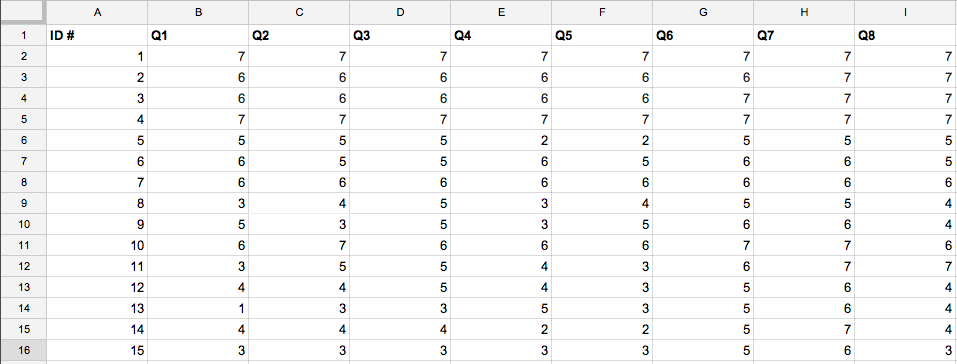
First, a quick look at the data:
HistogramData

In the first column I have the respondents’ ID numbers and in the subsequent columns the first row is the question number and the value for each response.

In order to make a frequency histogram, I first need to tabulate the frequency data like so:
HistogramFrequencies

In order to obtain the frequency of each value, I use Google Spreadsheet’s “countif” function. The syntax looks like this:

=countif(<range>, <condition>)

For cell B20, I use the following:

=countif(B$2:B$16, "="&$A$20)

B$2:B$16 is the data range for the results for Q1 and “=”&$A$20 is interpreted as “=1” (the value in cell A20 in concatenated with the string “=”). I initially input this as $A20 so that when I clicked-and-dragged down, each result was matched with the appropriate value (i.e. “=1”, “=2”, etc.) without needing any additional edits. I then changed $A20 to $A$20 (and $A21 to $A$21, etc.) so I could click-and-drag across, populating the rest of the table. A couple examples:
HistogramFormula1

HistogramFormula2

HistogramFormula3

Note that all columns need to reference column A for the compare value, as seen in the third image.

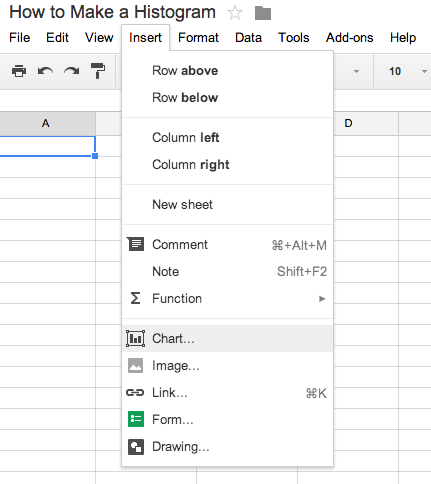
To make the actual chart/graph, I go to Insert -> Chart:
HistogramChart1

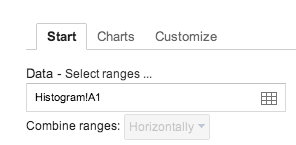
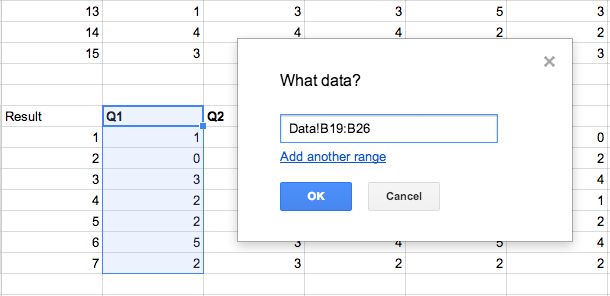
I click the table–esque looking icon to select the range(s):
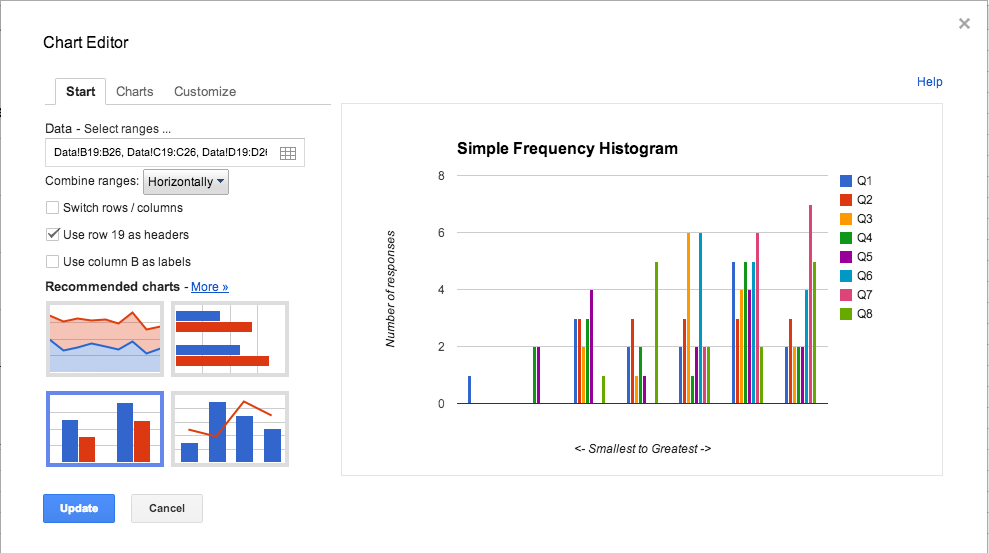
HistogramChart2

HistogramChart3

Then, I select the chart type (highlighted in blue) and select “use row 19 as headers”, otherwise no identifying information will display in the legend for each item. (Google Drive will automatically populate this with the first row number in the range of data you have selected.)

HistogramChart4

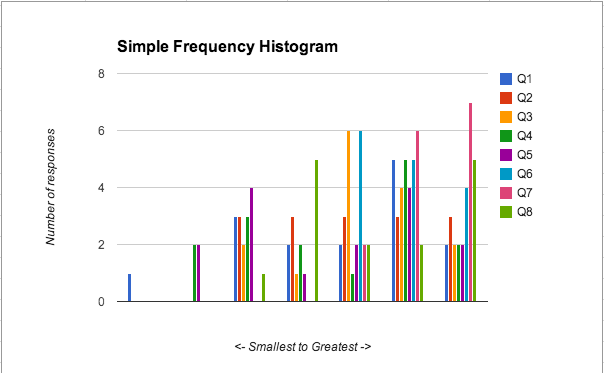
My final chart, after playing around with the names/etc. in the Customize tab, looks like this:
HistogramChart

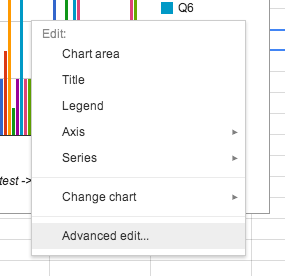
Note: You can re-open these options at any time by right-clicking on the chart and choosing “Advanced Edit”. There are also a few “quick edit” options available in the menu:
HIstogramRightClick

Happy chart-making!

Who likes ASCII Art? I do! — 17-July-2014

Who likes ASCII Art? I do!

Ever try to make something cool like this:
ASCII Wolf

And instead just get text mush? Or maybe you just wanted a nice simple ASCII diagram like this:
ASCII Flow Chart

Today I found a couple of tools that can *really* help with the latter (and even a bit with the former!): ASCII Flow and ASCII Draw.

With these awesome tools I was able to make this:

   +--------------------+              +---------------------+     
   |                    |              |                     |     
   |Like ASCII Art?     |              |  Like web tools?    |     
   |                    |              |                     |     
   +-----+--------------+              +-------------+-------+     
         |                                           |             
         |                                           |             
         |                                           |             
         |                                           |             
Yes!     |                                           |   Of course!
         |                                           |             
         |             +-------------------+         |             
         |             |                   |         |             
         |             | What do I do?!    +---------+             
         +-----------> |                   |                       
                       +----+-----------+--+                       
                            |           |                          
                            |           |                          
                    +-------+           |                          
                    |                   +------------+             
                    |                                |             
                    v                                v             
                                                                   
     +------------------------+           +-------------------+    
     |                        |           |                   |    
     |    Use ASCII Flow!     |           |  Use ASCII Draw!  |    
     |                        |           |                   |    
     +------------------------+           +-------------------+    

And even this (…it’s a Jack-O-Latern, renders a little weird in WordPress):

            XXXXXXX           
            X   XXX           
            X   X             
  XXXXXXXXXXX   XXXXXXXXXX    
 X          XX XX         XX  
X            XXX           XX 
X      X            X       XX
X     XXX          XXX       X
X    XXXXX    X   XXXXX      X
X            XXX             X
X                            X
X       XXX  XXXX  XX        X
X        XXXXXXXXXXX        XX
XXX        XXXXXXX          X 
   XXXXXXXXXXXXXXXXXXXXXXXXXX 

Proof I can (kind of) draw (screenshot in the tool):
ASCII Jack-O-Latern

Happy drawing!

Design a site like this with WordPress.com
Get started